- XTREME VIDEO CAPTURE CARDS
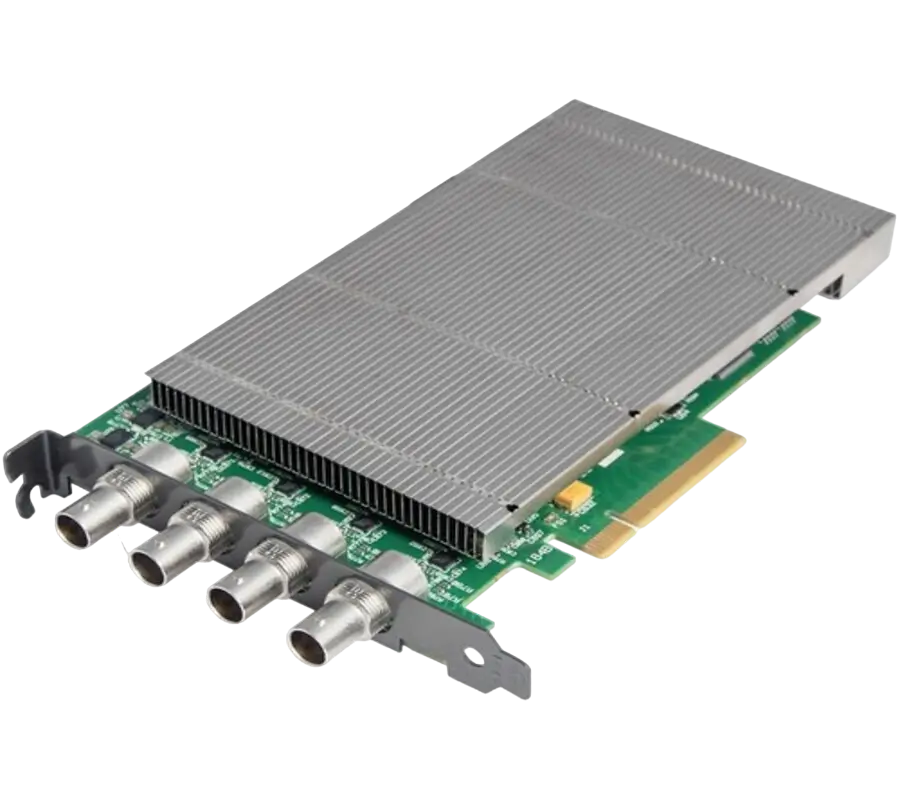
XtremeDV-SDI4
Ideal for use in broadcast markets or with any SDI capable applications the XtremeDVI-SDI4 provides four 3G-SDI inputs each capable of capturing 1920x1080p at 60 frames per second.
- GRAPHICS CONTROLLER (MULTISCREEN)
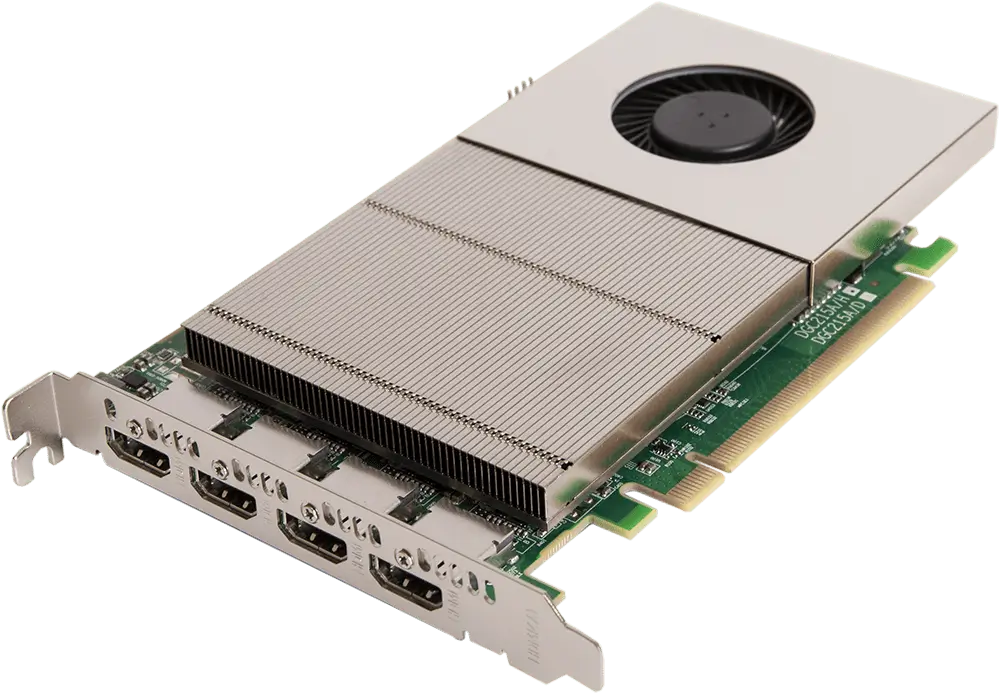
XtremeImage-4K
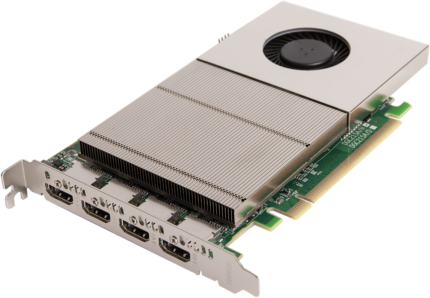
4 channel DisplayPort 4K Graphics Card
- Four 4K60 4:4:4 HDMI 2.0 outputs
- Enables full 4K60 capture and display in EMS VSN controllers
- VIDEO WALL CONTROLLER SYSTEM
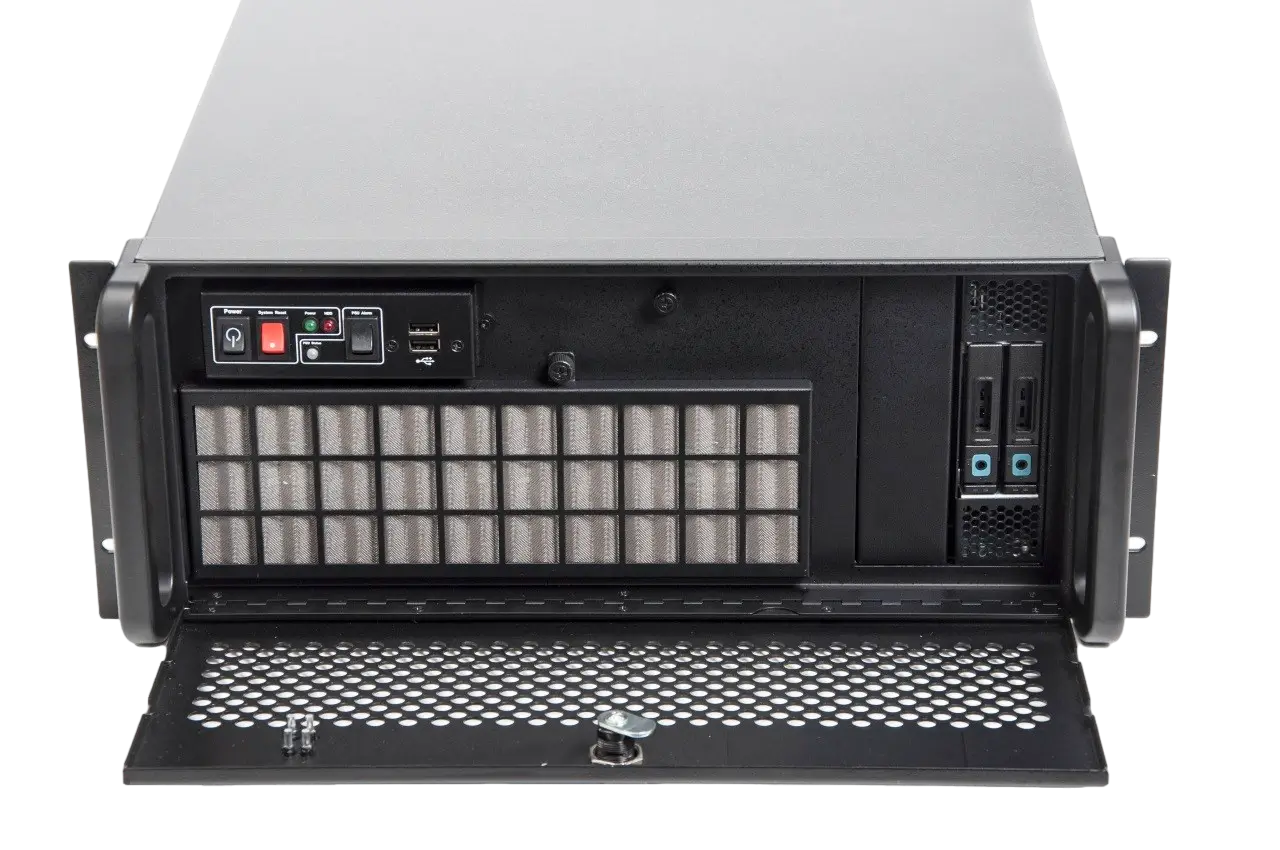
XtremeIPC-VSN-Expansion System
- 9 or 11 Slot Expansion Chassis
- Express9-G3 PCIe backplane providing 1 x 8 lane slot and 8 x 4 lane slots
- SOFTWARE & UTILITY
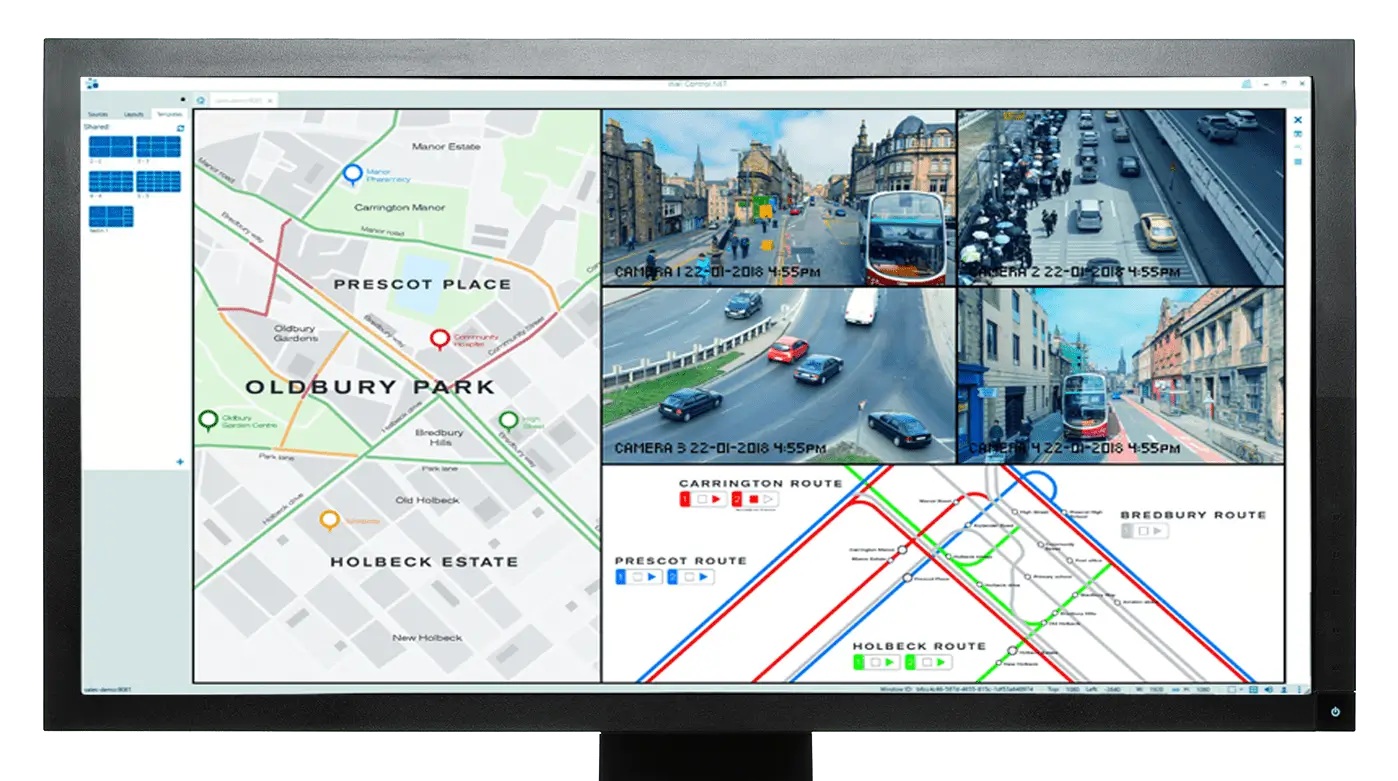
Vigi Control - Wall Management
- Easily control output sources such as IP feeds, video captures and local applications
- Create templates and produce zones on your video wall for easy placement of content.
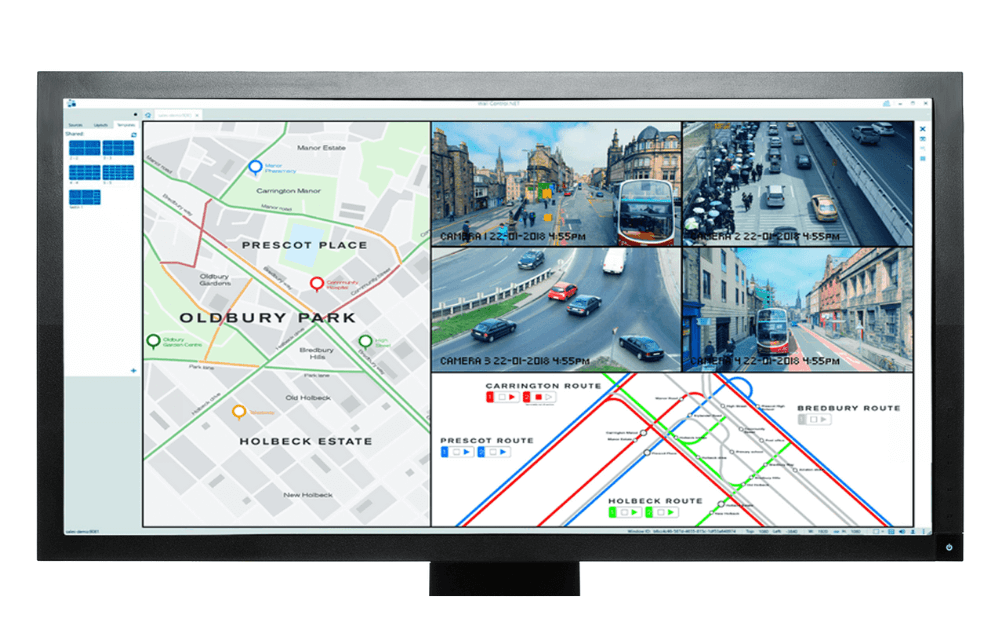
VigiControl
Video Wall Management Software
- Easily control output sources such as IP feeds, video captures and local applications
- Create templates and produce zones on your video wall for easy placement of content.
- Deploy templates over a single screen, multiple screens or an entire video wall.
- Template a window to group multiple pieces of content together.
- Select and crop particular areas of interest from a snapshot of your source and deploy them to the video wall.
- Decode up to 8 IP streams.
- Manipulate sources with full keyboard and mouse functionality (KVM)
- Advanced Software, Simplified Interface
VigiControl 10 allows users to easily control output sources such as IP feeds, video captures and local applications. These sources can be controlled by VigiControl 10 when the most elaborate and complex wall scenarios are required.
Description
Available on EMS’s VSN range of video wall controllers, VigiControl 10 allows users to easily control output sources such as IP feeds, video captures and local applications. These sources can be controlled by VigiControl 10 when the most complex wall scenarios are required.
Vigi Control software provides users with the interface needed to quickly and effectively manage video walls of any size in real-time.
- Create templates and produce zones on your video wall for easy placement of content.
- Deploy templates over a single screen, multiple screens or an entire video wall.
- Template a window to group multiple pieces of content together.
- Select and crop particular areas of interest from a snapshot of your source and deploy them to the video wall.
- Decode up to 8 IP streams.
- Manipulate sources with full keyboard and mouse functionality (KVM)
ADVANCED VIDEO WALL CONTROL
Video wall deployments require a number of users to interact simultaneously with a large number of inputs across a multiple screens to get the data where they require.
VigiControl provides users with the interface required to quickly and effectively manage content that include video captures, IP streams and local applications. Users are able to place any input source on any part of the Video Wall using a simple drag and drop operation. Precise positioning of each piece of content can be achieved through the mouse and keyboard, or via the revolutionary template tool. The Template Tool allows users to not only place their own templates across an entire wall which evenly distributes content but VigiControl also allows users to apply a template to an individual window so multiple windows can be grouped together and moved as a single item. VigiControl also allows you to save and recall layout files quickly and easily ensuring the video wall is always showing the correct information.
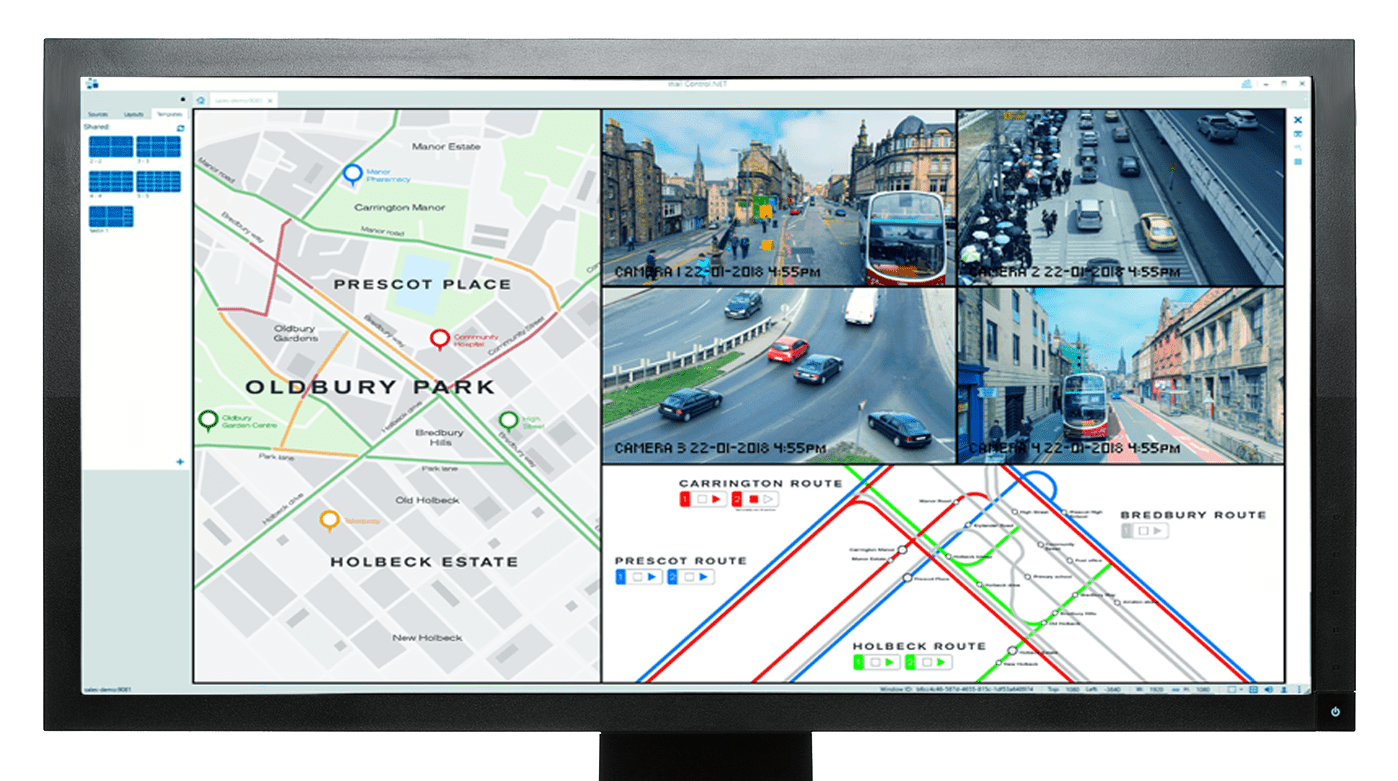
SIMPLE INTERFACE – ADVANCED FEATURES
VigiControl will allow any piece of content, whether from our Xtreme capture cards, IP via the PC processor or an ActiveSQX card or local media to be placed in anywhere on a video wall. VigiControl also allows administrators to deploy multiple unique videos walls from a single VSN system.
Using User Rights Management administrators can determine which users on their network can firstly access each wall and secondly determine what level of permission each user will have. Restrictions can include the number of sources and layout files available to each user, which templates they can deploy and whether the desktop capture is available or not.
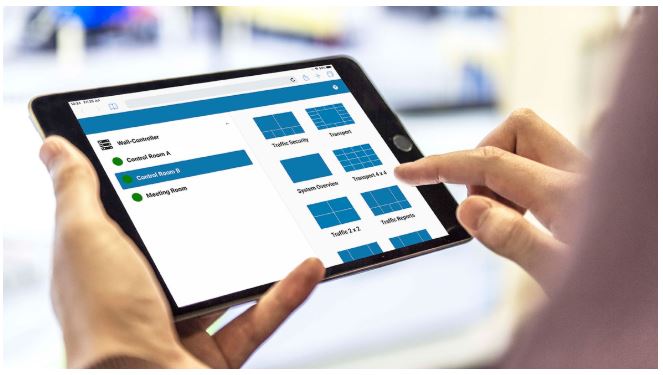
Web InterfaceThe VigiControl Web Interface allows users to connect to the video wall from any compatible browser on laptops, phones and tablet devices. Users can select which wall they wish to change and then will be presented with the available layouts. |
 |
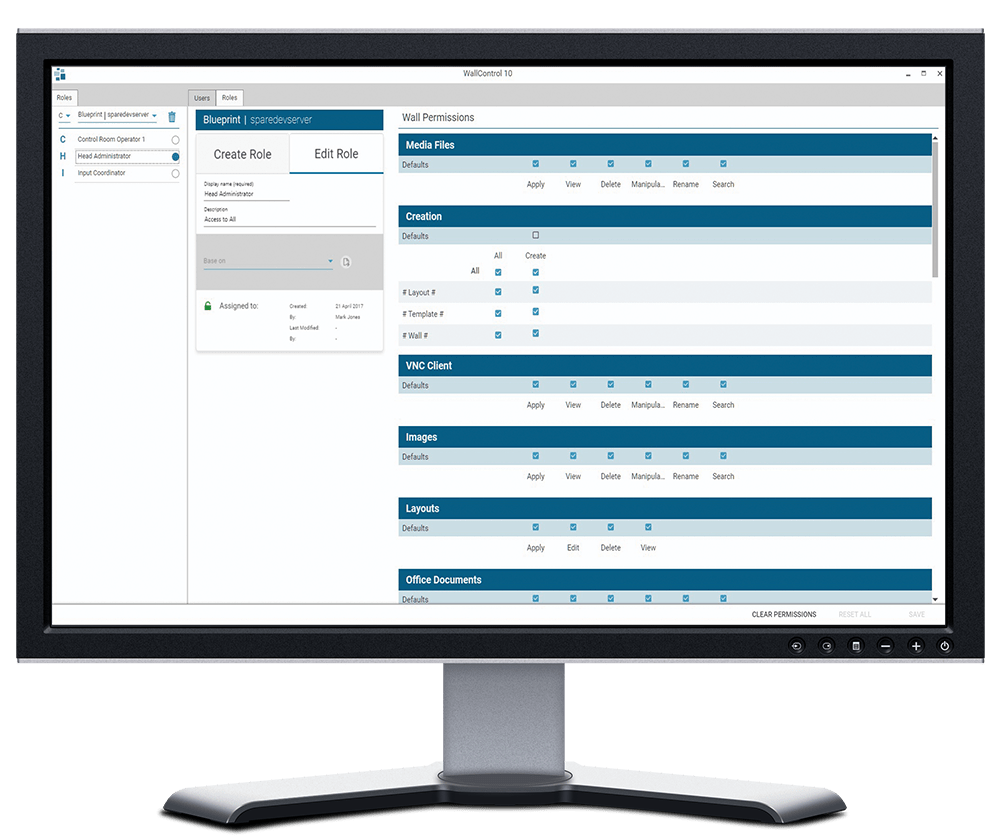 |
User Rights ManagementUser rights management can be deployed on each VSN system. Users can be assigned roles on a per wall basis based on their Windows log in, with each role allowing access to a subset of sources or layout files.
For example, a user may have restricted access on video wall 1, whilst a second user may restricted access on video wall 2. An administrator then may have full access to all video walls.
|
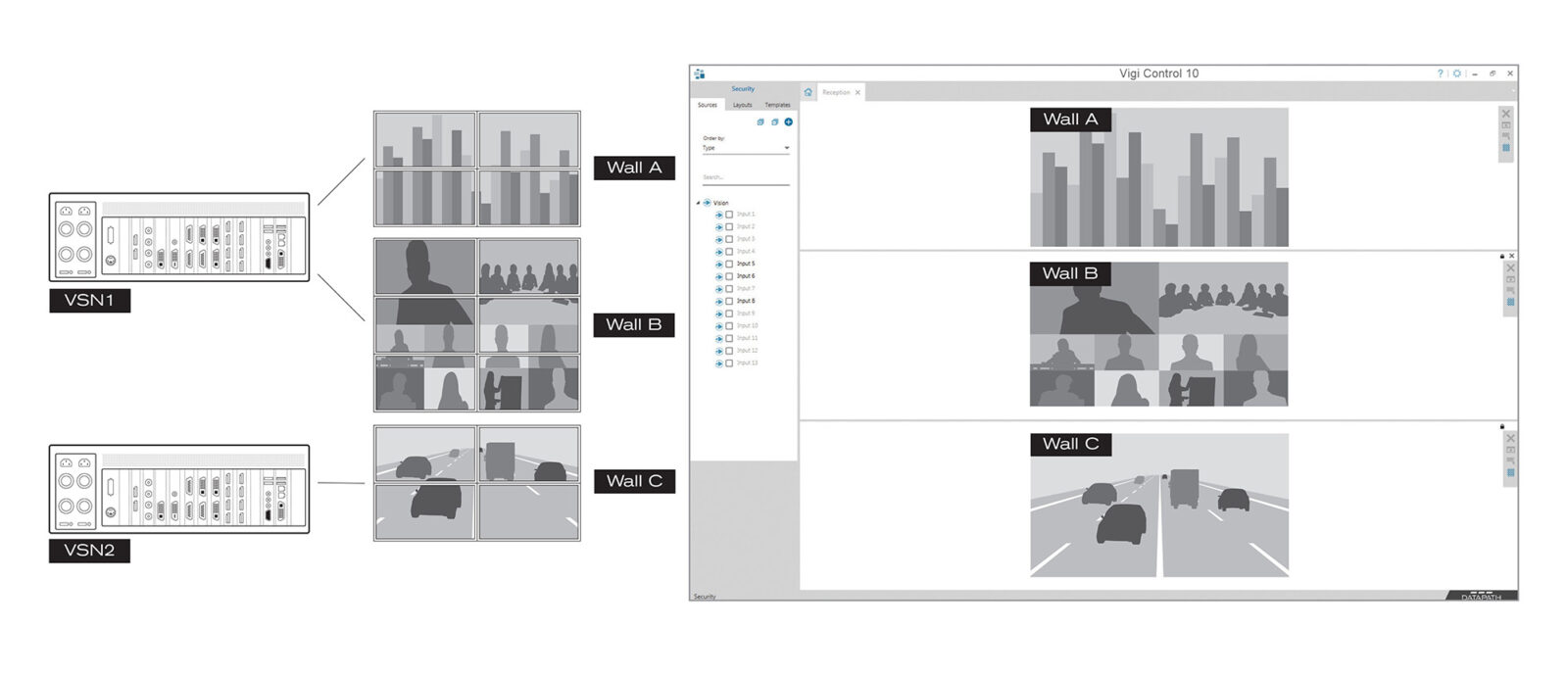
MultiWall
Multiple walls can be easily set up using the WallCreator wizard and if required each wall can be assigned a unique set of sources or video resources.
VigiControl allows multiple walls to be delivered by a single VSN system. Walls in separate areas of a building can be independently driven from a single location.
Want to design your own video wall configuration then go to custom system configurator or Contact us
Specifications
Accessories
Related products