
Gaming & Content Creation
Capture PS5, Xbox Series X, Nintendo Switch and PC gameplay for Twitch and YouTube. Add a professional camera facecam, fix every HDCP and 4K issue, and build a content creation setup that looks and sounds professional from day one.
Gaming & Content Creation Signal Flow
Console HDCP Status & Capture Setup
HDCP (High-bandwidth Digital Content Protection) is the number one cause of black screens in gaming capture. Here is the status for every current console and exactly how to fix it.
PlayStation 5
Must disable before capture:
Settings → System → HDMI → Enable HDCP → Off
Restart PS5 after changing. With HDCP off, Blu-ray disc playback and some streaming apps (Netflix, Disney+) are blocked — re-enable HDCP when needed. All games capture correctly with HDCP disabled.
Xbox Series X / S
Xbox Series X and S do not apply HDCP to game output — capture cards work immediately. HDCP is applied only to streaming apps (Netflix, Blu-ray) on Xbox, not to games. No settings change needed for game capture.
Settings → General → TV & display options → Video modes
Disable Allow 4K and Allow HDR10 here if you are not using a 4K/HDR capture card — prevents colour issues.
Nintendo Switch
Switch does not implement HDCP. Capture works immediately — but only in TV mode (docked). Portable/handheld mode does not output video to HDMI.
Dock the Switch → HDMI from dock → capture card
If the Switch is docked but showing nothing: press Home on the controller to wake it, or check System Settings → TV Settings → RGB Range and Resolution match your capture card settings.
PC Gaming
PC game output via HDMI or DisplayPort to a capture card works without any HDCP issues. Connect a second monitor output (HDMI from the GPU) to the capture card — the game runs on the primary monitor and the capture card receives the signal. For dual-PC streaming: gaming PC GPU → HDMI → capture card in the streaming PC.
PlayStation 4 / PS4 Pro
Settings → System → Enable HDCP → Off
Same process as PS5 but in the older settings menu. Streaming apps blocked with HDCP off. PS4 Pro maximum output is 4K30 to TV — capture is typically at 1080p60.
Xbox One / Series (older)
Same as Series X/S — HDCP not applied to game output. Capture works immediately. One button press puts Xbox in Game DVR/capture mode for local recording without any external capture card.
Who Uses Gaming & Content Capture
Twitch Streamers
Live console and PC game streaming with facecam, chat overlay and bit alerts.
YouTube Gamers
Recorded Let's Plays, speedruns, game reviews and highlight compilations for YouTube.
Esports Teams
Broadcast-quality stream for competitive matches, tournaments and team content.
Content Creators
Multi-format creators — gaming, unboxings, lifestyle vlogs — needing professional camera quality.
Video Podcasters
Multi-camera podcast recording with professional cameras as video sources for YouTube and Spotify.
Influencers
Professional camera as webcam for brand collaborations, sponsored streams and social content.
Game Developers
Capture gameplay footage for trailers, bug reporting, tutorial creation and store page videos.
News & Review Media
Games journalists capturing footage for reviews, previews and video articles for publication.
Content Creation Setup Types
Single PC: Console + USB Capture Device
Console → USB capture device → Laptop or desktop PC running OBS. Use NVENC GPU encoding to stream without impacting game performance. Passthrough to TV for zero-latency gameplay.
- ✅ Simple — one USB cable to the PC
- ✅ NVENC encoding on GPU (near-zero impact)
- ✅ Elgato Neo or 4K S for most users
- ⚠️ PC must run OBS while gaming
Dual PC: Gaming PC + Streaming PC
Gaming PC → HDMI → capture card in a second streaming PC. Gaming PC is never burdened by encoding. Streaming PC handles OBS, facecam overlay and stream delivery independently.
- ✅ Zero encoding load on gaming PC
- ✅ Best stream quality regardless of game load
- ⚠️ Requires two PCs
- ⚠️ PCIe capture card in streaming PC
4K Passthrough Setup
Console → HDMI 2.1 capture card → TV at 4K120fps HDR. Capture card simultaneously records 4K60 or 1080p60 for the stream — you play at maximum quality while streaming at broadcast quality.
- ✅ Full 4K120fps HDR gameplay on TV
- ✅ Zero quality compromise while playing
- ✅ Elgato 4K X or 4K S for passthrough
- ⚠️ HDCP must be disabled on PS5
Camera Facecam + Capture Card
DSLR or mirrorless camera HDMI → second USB capture device. Dramatically better image than any webcam — depth of field, colour science and low-light performance elevate stream quality.
- ✅ Professional camera quality on stream
- ✅ Works in OBS as second video source
- ✅ Magewell USB Capture Gen 2 for camera
- ✅ Enable clean HDMI on camera
Multi-Camera Video Podcast
Two or three cameras (main face, side angle, wide shot) each via USB capture devices. OBS manages multi-camera switching. Produces YouTube-ready video podcast footage automatically.
- ✅ Professional multi-cam look
- ✅ OBS scene switching for camera cuts
- ✅ Record locally + stream simultaneously
- ⚠️ USB bandwidth — one card per USB port
Tournament & Esports Broadcast
Multiple player feeds via PCIe capture cards or NDI into OBS/vMix production. Broadcast-quality overlay, observer cam and multi-player switching for esports event coverage.
- ✅ Professional broadcast look
- ✅ Multiple player POV simultaneously
- ✅ Magewell Pro Capture for reliability
- ✅ NDI for multi-source over network
Recommended Products for Gaming & Content Creation
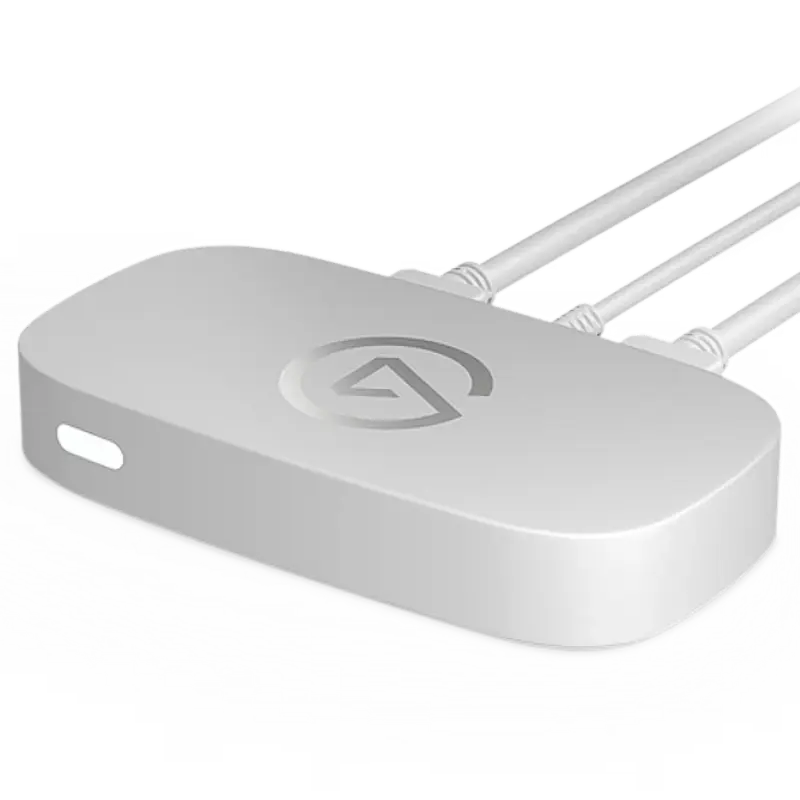
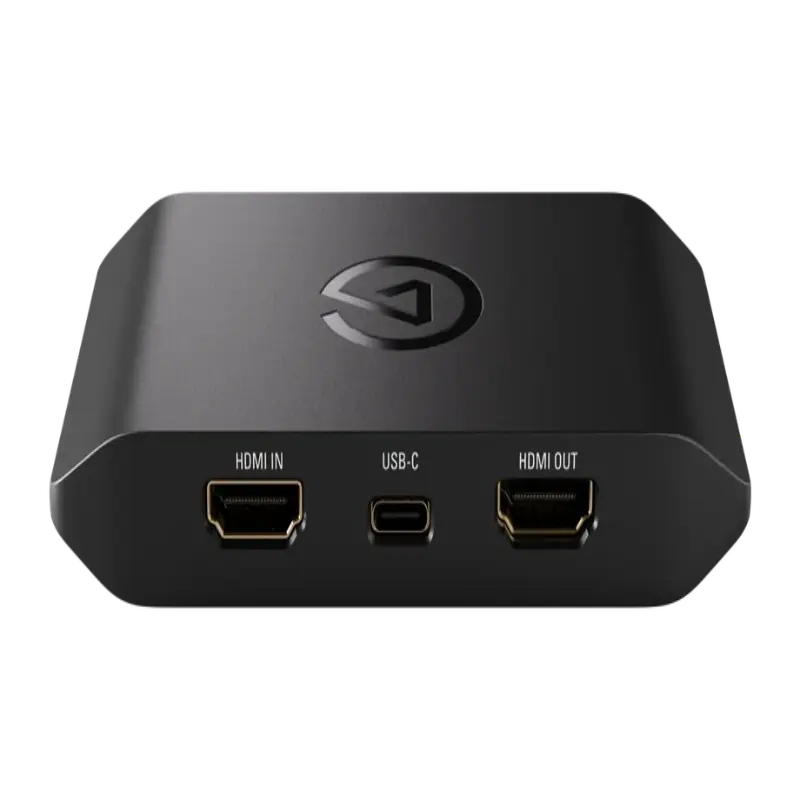
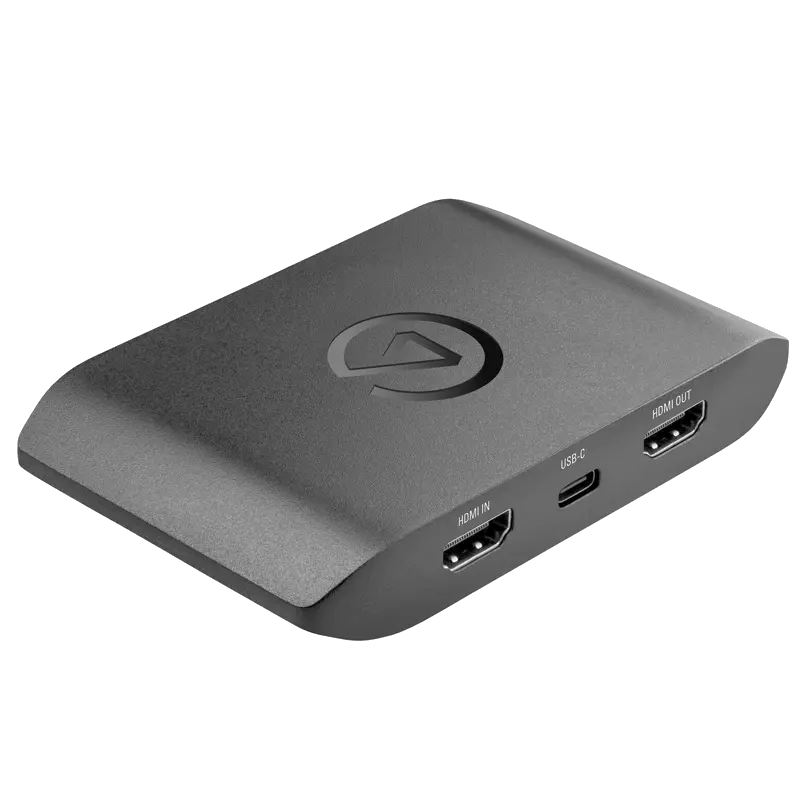
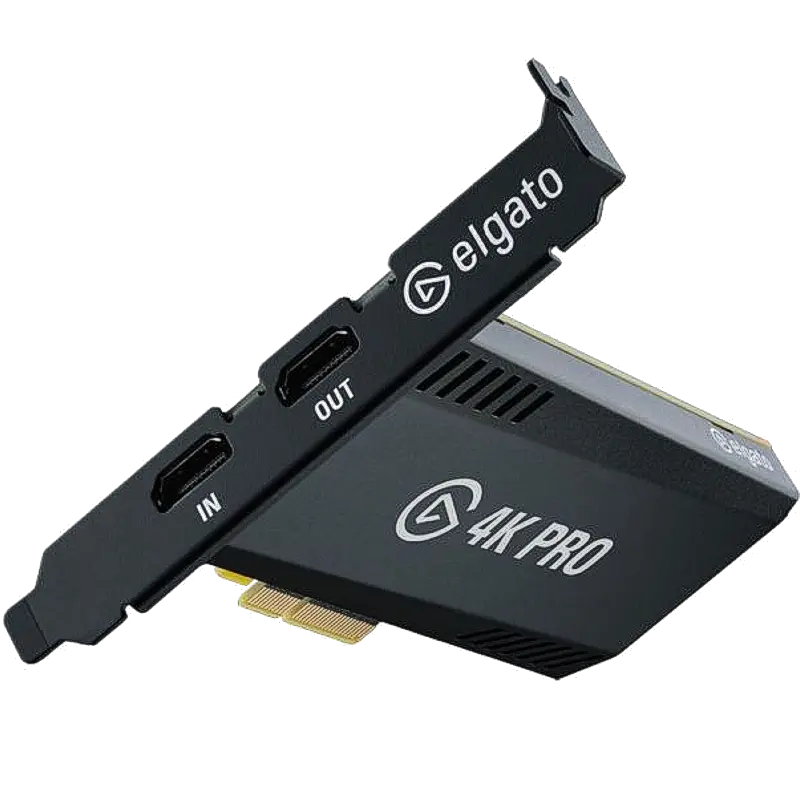


Blackmagic Design: Blackmagic DeckLink PCIe cards and UltraStudio Thunderbolt devices are popular for professional video capture in dual-PC streaming rigs and content creation workstations. DaVinci Resolve users benefit from native Blackmagic integration. View the full Blackmagic range →
Resolution, Bitrate & OBS Settings for Gaming
| Platform | Output resolution | Frame rate | Bitrate | Encoder | Keyframe |
|---|---|---|---|---|---|
| Twitch (non-Partner) | 1080p or 720p | 60fps | 6,000 kbps max | NVENC H.264 | 2s |
| Twitch (Partner) | 1080p | 60fps | 8,000 kbps max | NVENC H.264 | 2s |
| YouTube Gaming | 1080p or 1440p | 60fps | 6,000–9,000 kbps | NVENC H.264/H.265 | 2s |
| YouTube (4K) | 4K | 60fps | 20,000–51,000 kbps | NVENC H.265 | 2s |
| Local recording (VOD) | 1080p or 4K | 60fps | 50,000–100,000 kbps | NVENC H.264 CQP | Any |
| Kick.com | 1080p | 60fps | 8,000 kbps max | H.264 | 2s |
| Facebook Gaming | 1080p | 60fps | 4,000 kbps max | H.264 | 2s |
OBS settings for gaming (single PC with NVIDIA GPU)
- Encoder: NVENC H.264 (New) — Settings → Output → Encoder
- Rate Control: CBR for streaming; CQP for local recording
- Preset: P5 (balanced) or P6 (quality) for NVENC
- Keyframe Interval: 2 (required by all streaming platforms)
- Canvas resolution: 1920×1080 or 2560×1440
- Output (scaled) resolution: 1920×1080 for streaming
- Frame rate: 60 (UK PAL: 50 for non-gaming content)
- Process priority: Set OBS to High in Task Manager for stable encoding
💡 VRR/G-Sync and capture: Variable Refresh Rate (VRR, G-Sync, FreeSync) on the passthrough output to your TV is fully supported on the Elgato 4K X and some other capture cards. However, VRR on the capture output causes frame rate inconsistency in OBS — always set the capture output to a fixed frame rate (60fps) even if the passthrough sends VRR to the TV. Disable VRR in the console settings for the capture output port while keeping it on the TV output port where the console supports dual outputs.
Compatible Software for Gaming & Content Creation
Troubleshooting Common Gaming Capture Problems
⬛ Black screen when capturing PS5 or PS4
HDCP is enabled on the PlayStation — this is the cause of almost every PS5/PS4 black screen. Fix: Settings → System → HDMI → Enable HDCP → turn OFF. Restart the PS5. The capture card will immediately show the image. Note: with HDCP disabled, Blu-ray disc playback and streaming apps (Netflix, Disney+, Amazon) will refuse to play — this is enforced by those services, not by Sony. Re-enable HDCP when you want to use those apps. All games work correctly with HDCP disabled.
📺 Capture card shows game but image looks washed out or wrong colours
HDR colour space mismatch. If the PS5 or Xbox is outputting HDR and the capture card does not support HDR, the image appears grey/washed-out because the HDR metadata is stripped without tone mapping. Fix: disable HDR on the console output settings — PS5: Settings → Screen and Video → Video Output → HDR → Disabled; Xbox: Settings → General → TV & display options → Video modes → uncheck Allow HDR10 and Allow Dolby Vision. Alternatively, use the passthrough output for HDR gameplay on your TV and capture the non-HDR signal via the capture card's main input.
🔴 Nintendo Switch docked but capture card shows nothing
The Switch must be actively displaying content to output HDMI. Try: (1) press the Home button on the Joy-Con or Pro Controller to wake the Switch — the HDMI signal drops when the Switch screen sleeps; (2) ensure the Switch is fully docked, not just resting in the dock — the USB-C connection must seat fully; (3) check the Switch is in TV mode — System Settings → TV Settings; (4) try a different HDMI cable between the dock and capture card; (5) check the dock's HDMI port with a TV to confirm the dock itself is working. The Switch cannot output HDMI when used in portable/handheld mode — it must be docked.
🖥️ OBS is detecting the capture card but the game image is laggy or stuttering
This is almost always caused by monitoring the game through the OBS capture preview rather than using the capture card's passthrough output. The capture card introduces 100–300ms of latency — playing a game while watching it through OBS preview feels unresponsive. Always use the HDMI passthrough output from the capture card to your TV for gameplay. The passthrough sends the original signal with near-zero latency while the capture card simultaneously provides a copy to OBS. Never game through the OBS preview window — it is for monitoring stream quality only.
🔊 Game audio captured but microphone or headset not in the stream
OBS requires separate audio source configuration for microphone audio. In OBS Settings → Audio: set Desktop Audio to your capture card (for game audio) and Mic/Auxiliary to your microphone or headset. Check both are visible in the Audio Mixer at the bottom of OBS and that neither is muted. For headsets plugged into the console controller: the headset audio goes into the console's mix, not to your PC — to capture it, use a mixer or capture the console's audio output via HDMI (embedded in the HDMI signal). For USB headsets on PC: select the USB headset as Mic/Auxiliary in OBS Audio settings.
📉 Frame drops and encoding overloaded — single PC setup
The gaming PC cannot handle both the game and OBS encoding simultaneously. Solutions: (1) switch from x264 (CPU encoding) to NVENC (GPU encoding) in OBS Output settings — NVENC uses the GPU's dedicated encoder chip and has near-zero impact on game performance; (2) check GPU usage — if the GPU is at 99% during the game, NVENC will be resource-limited; lower in-game graphics settings; (3) for persistent performance issues, upgrade to a dual-PC setup with a separate streaming PC and capture card — the gaming PC is then completely free from encoding overhead; (4) reduce OBS output resolution from 1080p to 720p temporarily to confirm whether encoding is the bottleneck.
📷 Camera facecam looks good but has a visible delay compared to game footage
The game capture and camera capture have different processing latencies — game capture (GPU-based or console HDMI) may arrive faster than the camera USB capture device. In OBS, right-click the camera source → Filters → Add Sync Offset filter → set a positive delay of 100–300ms to align the camera with the game. Alternatively, right-click the video source → Properties → use the Audio Sync Offset for audio alignment. The exact offset depends on your specific capture card — test by clapping in front of the camera and checking the waveform alignment in the OBS preview.
Building a professional content creation setup?
Our technical team can advise on the right capture card combination for your console, camera and streaming goals — from a simple single-card setup to a full dual-PC broadcast rig.
Contact Technical SupportFrequently Asked Questions
Why is my PS5 capture card showing a black screen?
HDCP is enabled on the PS5 by default. Disable it: Settings → System → HDMI → Enable HDCP → Off. Restart the PS5. With HDCP off, Blu-ray discs and streaming apps (Netflix etc.) are blocked — re-enable when needed. Xbox and Nintendo Switch do not need any HDCP changes for game capture.
Can I capture 4K120fps from PS5 or Xbox Series X?
Current capture cards maximum capture at 4K60fps — 4K120fps capture is not yet widely available. Use HDMI 2.1 passthrough: your TV receives 4K120fps HDR VRR for gameplay (zero latency) while the capture card captures 4K60 or 1080p60 for the stream. The Elgato 4K X supports 4K60 capture with HDMI 2.1 passthrough for 4K120fps to the TV.
What is 4K passthrough and do I need it?
Passthrough sends the original uncompressed HDMI signal to your TV at full quality (4K120fps HDR) with zero latency, while the capture card separately encodes a stream (1080p60) for OBS. Without passthrough you would have to play through the OBS capture preview which has 100–300ms latency — completely unplayable for most games. Always use passthrough for gameplay and only monitor the OBS preview to check the stream quality.
Do I need a dual PC setup for streaming?
Not necessarily. A modern gaming PC with NVENC (NVIDIA) or AMF (AMD) GPU encoding can stream and game simultaneously with minimal performance impact. If your gaming PC struggles with OBS encoding alongside demanding games, a second PC with a PCIe capture card (Elgato 4K Pro, Magewell Pro Capture) is the solution. Dual PC is best for competitive gaming where any performance dip matters, or for streamers running very high-end game settings.
How do I add a professional camera as a facecam?
Connect the camera HDMI output to a second USB capture device (Magewell USB Capture HDMI Gen 2 at £231 is the professional choice; Elgato Cam Link 4K for consumers). Enable clean HDMI on the camera (removes overlays). In OBS, add a second Video Capture Device source and select the camera card. Position as an overlay in the scene. The quality difference over a built-in webcam is dramatic — depth of field and colour science of a DSLR or mirrorless on stream.
Why does my captured game look washed out?
HDR colour space mismatch. Disable HDR on the console: PS5: Settings → Screen and Video → Video Output → HDR → Disabled; Xbox: Settings → General → TV & display options → Video modes → uncheck HDR10 and Dolby Vision. Use the passthrough output for HDR gaming on your TV while capturing the SDR (standard) output for OBS. Most streamers disable HDR specifically for capture sessions.
What is the difference between Elgato and Magewell for gaming?
Elgato cards are gaming-optimised with features like 4K passthrough, VRR support and Elgato's capture utility. The Game Capture 4K X is the best consumer 4K gaming capture card available. Magewell USB Capture cards are broadcast-grade professional devices — more expensive but more reliable across OS updates and more versatile (professional cameras, medical, conferencing). For pure gaming, Elgato is the correct specialist choice. For a content creator who also uses the card for professional video work, Magewell provides broadcast durability.
Why is my Nintendo Switch not showing when docked?
The Switch outputs HDMI only in TV mode (docked). Handheld/portable mode has no HDMI output. If docked and showing nothing: press Home on the controller to wake it (HDMI drops when the Switch sleeps), check the USB-C connection is fully seated in the dock, and ensure System Settings → TV Settings → Resolution is set correctly. Try the dock HDMI output with a TV first to confirm the dock is working before testing with the capture card.