Lecture Capture
Record lectures, seminars and training sessions to Panopto, Kaltura, Echo360 and your LMS — from a single fixed camera to multi-stream presenter-plus-slides, with auto-tracking PTZ and hybrid in-person/remote delivery.
Lecture Capture Signal Flow
Who Uses Lecture Capture
Universities
Lecture theatre recording for student revision, accessibility compliance and asynchronous learning.
Schools & Colleges
Classroom recording for flipped learning, teacher CPD and remote/absent student catch-up.
Medical Schools
Anatomy, pathology and clinical skills lecture recording with compliance-grade access controls.
Corporate Training
Internal training session recording for onboarding, compliance and skills development archives.
Legal & Professional
CPD and bar training recording, judiciary training archives and continuing education programmes.
Defence Training
Secure lecture and briefing capture on classified networks, without cloud upload dependency.
Distance Learning
On-demand lecture content for remote students, international cohorts and part-time learners.
Research Institutes
Conference presentation recording, seminar archive and academic event documentation.
Lecture Capture Setup Types
Fixed Camera + Slides
One fixed wide-angle camera pointing at the teaching area, plus capture of the presenter's HDMI slides output. Two streams in Panopto — presenter video and slides side-by-side.
- ✅ Lowest cost, simplest setup
- ✅ Fully automated — no operator
- ✅ Works with Panopto/Kaltura/Echo360
- ⚠️ Fixed camera may miss whiteboard activity
Auto-Tracking PTZ + Slides
PTZ camera with auto-tracking follows the presenter automatically. Camera software detects movement and adjusts pan/tilt/zoom to keep presenter in frame without operator.
- ✅ Follows presenter around room
- ✅ Captures whiteboard and podium
- ✅ Still fully automated
- ⚠️ Higher cost than fixed camera
- ⚠️ Auto-tracking requires correct lighting
Presenter + Slides + Document Cam
Three-stream recording: wide-angle presenter camera, slides capture, and document camera for laboratory work, diagrams and physical specimens.
- ✅ Complete context capture
- ✅ Document cam shows close-up detail
- ✅ Ideal for science/medical subjects
- ⚠️ Requires two or three capture cards
Hybrid In-Person + Online
Live stream to Zoom/Teams for remote students while simultaneously recording to Panopto. Presenter camera, microphone and slides all sent to both remote and recording destinations.
- ✅ Real-time remote participation
- ✅ Simultaneous recording + streaming
- ✅ Captures Q&A from both audiences
- ⚠️ Requires reliable venue internet
VGA Slides + HDMI Camera
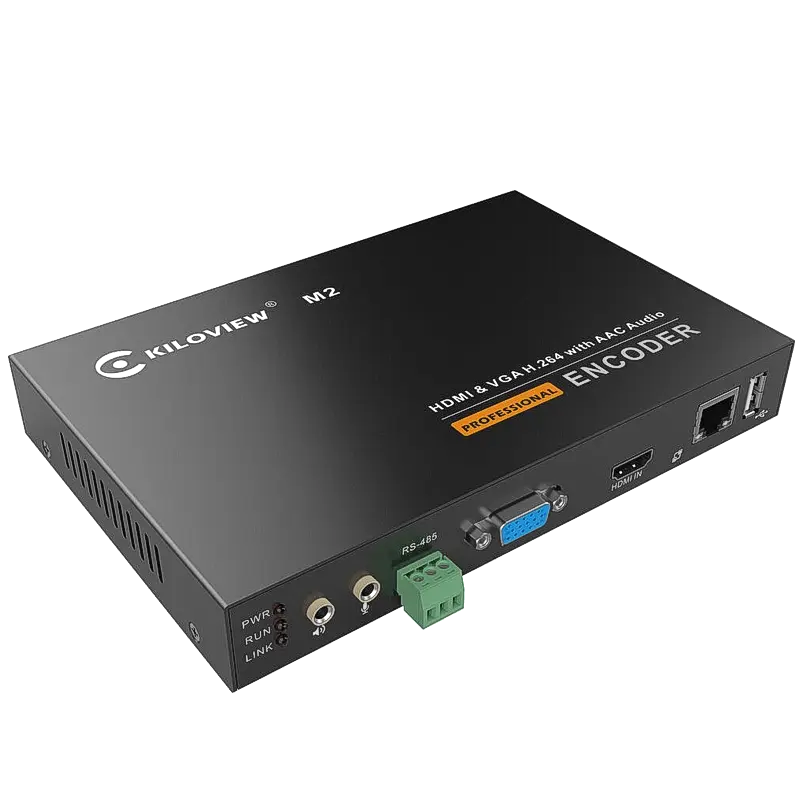
Older lecture theatres with VGA projectors still require VGA capture alongside HDMI presenter camera. Kiloview M2 accepts both simultaneously. Alternatively, install VGA-to-HDMI converters at presenter points.
- ✅ No infrastructure replacement needed
- ✅ Kiloview M2 handles both in one device
- ⚠️ VGA max 1920×1200 — no 4K
- ⚠️ VGA has no audio — capture separately
Lecture Capture Appliance (NUC)
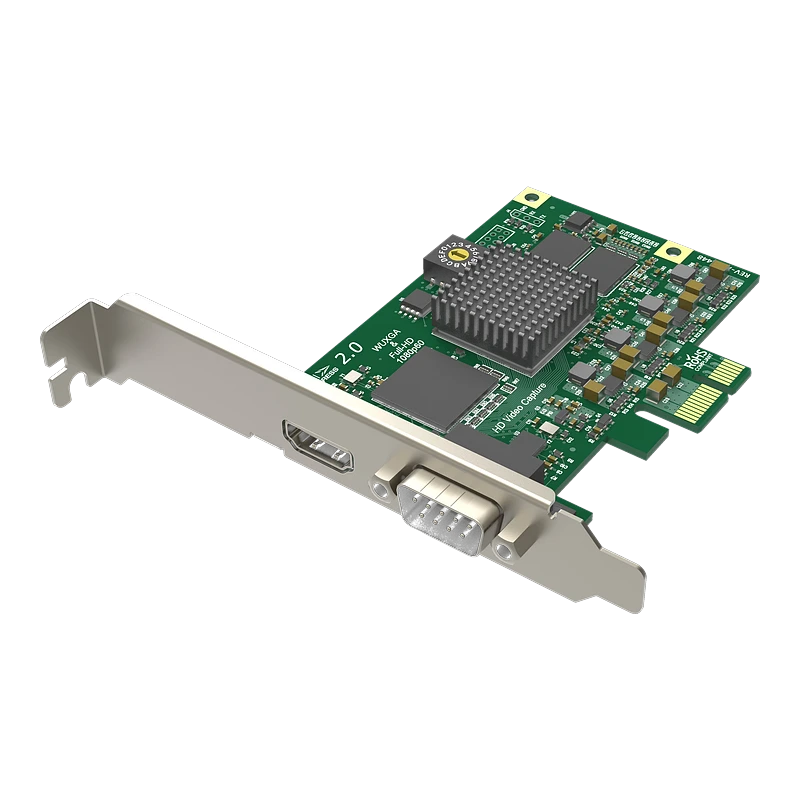
Small form factor PC (Intel NUC or equivalent) with M.2 capture card permanently installed in AV rack. No visible cables to pull out. Managed centrally via network. Panopto/Kaltura agents pre-installed.
- ✅ Tamper-resistant, cable-secure
- ✅ Remote management via Panopto/Intune
- ✅ Clean aesthetic in teaching spaces
- ⚠️ Requires M.2 PCIe slot in host PC
Recommended Products for Lecture Capture




Resolution, Format & Frame Rate Recommendations
| Capture source | Recommended resolution | Frame rate | Notes |
|---|---|---|---|
| Presenter camera (wide) | 1920×1080 | 25fps (UK PAL) | 25fps matches UK mains lighting (50Hz) — avoids flicker banding |
| Slides / screen capture | 1920×1080 or 1920×1200 | 5–25fps | Low frame rate is sufficient for slides — reduces file size significantly |
| Document camera | 1920×1080 minimum | 25fps | Higher resolution (4K) benefits text-heavy documents and specimens |
| Microscope / scope camera | 1920×1080 | 25fps | Most scope cameras output 1080p; some output 4K via HDMI |
| VGA slides (legacy venues) | 1280×1024 or 1920×1200 | 5–25fps | VGA maximum is 1920×1200 — no 4K. Capture at native VGA resolution |
| 4K lecture (future-proof) | 3840×2160 | 25fps | Panopto transcodes to 1080p on upload — 4K capture adds storage overhead |
⚠️ Frame rate warning — always capture at 25fps in the UK: UK venues use 50Hz mains power. Fluorescent and LED lights flicker at 50Hz. Capturing at 30fps (the US standard) creates a visible slow-rolling flicker band across the image — not obvious during recording but very visible in playback. All UK lecture capture should be set to 25fps. Set this explicitly in Panopto Remote Recorder settings, OBS and any capture software — do not rely on "auto" frame rate detection.
Lecture Capture Platform Compatibility
| Platform | UVC USB Support | Magewell PCIe | NDI Support | Auto-schedule | LMS Integration |
|---|---|---|---|---|---|
| Panopto | ✅ Native | ✅ Via plugin | ✅ Remote Recorder | ✅ Room schedule | Moodle, Canvas, Blackboard, Teams |
| Kaltura | ✅ Native | ✅ Via driver | ⚠️ Via NDI→UVC bridge | ✅ Kaltura Scheduler | Moodle, Canvas, Blackboard |
| Echo360 | ✅ Universal Capture | ✅ Via DirectShow | ⚠️ Limited | ✅ Auto-schedule | Moodle, Canvas, Blackboard |
| YuJa | ✅ Native | ✅ Via DirectShow | ⚠️ Via bridge | ✅ Smart Scheduling | Moodle, Canvas, Blackboard, D2L |
| OBS Studio | ✅ Native | ✅ Via DirectShow | ✅ obs-ndi plugin | ❌ Manual or script | Manual upload to platform |
| Microsoft Teams | ✅ As webcam | ⚠️ Some models | ✅ Teams NDI out | ❌ Manual | Teams + Stream (Microsoft 365) |
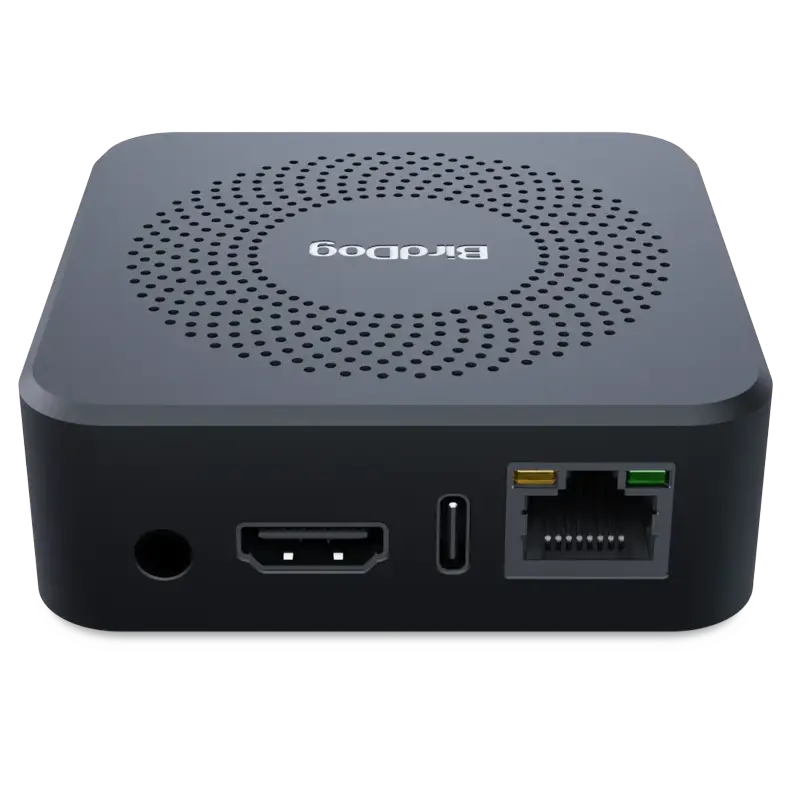
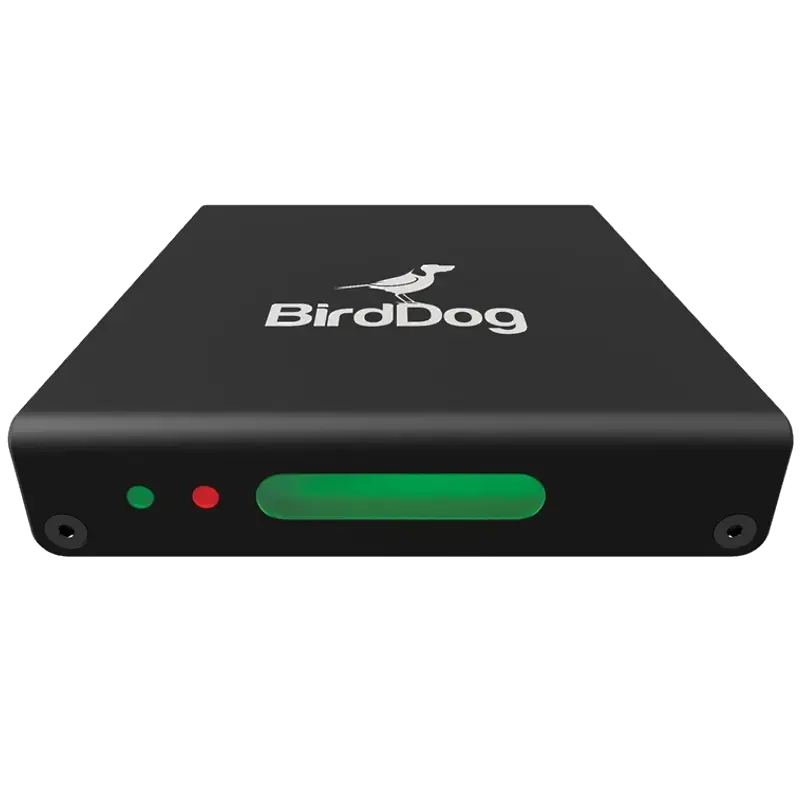
💡 NDI in Panopto: Panopto Remote Recorder on Windows can receive NDI sources directly — install the NDI runtime on the lecture capture PC and NDI cameras appear in the Panopto source list alongside USB capture devices. This is the cleanest way to integrate BirdDog PTZ cameras and Magewell Pro Convert encoders into a Panopto deployment without a separate USB capture device per camera.
Compatible Lecture Capture & Recording Software
Troubleshooting Common Lecture Capture Problems
❌ Panopto Remote Recorder does not show the capture card as a video source
Most common cause: the capture card is not UVC compliant. Panopto Remote Recorder only recognises USB Video Class (UVC) devices — proprietary driver-based cards (such as some Elgato models before the latest drivers) do not appear. Use Magewell USB Capture (confirmed UVC) or Epiphan AV.io HD Plus. Also check: (1) the card is connected directly to a USB 3.0 port on the PC, not a hub; (2) in Windows Device Manager, the card appears under Imaging Devices or Cameras with no yellow warning; (3) the Panopto Remote Recorder service has been restarted after connecting the card; (4) Windows Camera privacy settings allow Panopto to access the camera (Settings → Privacy → Camera → Allow apps).
🎙️ Audio and video are out of sync in the Panopto recording
Audio sync drift in long lectures is almost always caused by a frame rate mismatch. If the capture card is set to 30fps but the room camera outputs 25fps, Panopto duplicates or drops frames to compensate — causing audio drift over a 1-hour lecture. Set the capture device in Panopto Remote Recorder settings to 25fps explicitly. Also check the room microphone audio sample rate — set all audio to 48000 Hz in Windows Sound settings. USB capture devices with embedded audio (HDMI audio) can have processing latency — set a fixed offset in Panopto Remote Recorder's audio delay setting.
🖥️ Slides look blurry or text is unreadable in the Panopto recording
The slides are being captured at too low a resolution. In Panopto Remote Recorder, right-click the video source → Properties → set resolution to 1920×1080 (not the default lower resolution). Check the HDMI output from the presenter laptop is set to 1920×1080 in Windows Display Settings — some laptops default to the native screen resolution (often 2560×1440 or 1366×768) which may not match the capture card's preferred resolution. If the capture card is receiving 1366×768 (common with laptop HDMI output on older machines), the recorded slides will appear pixelated — force 1920×1080 on the laptop's external HDMI output in display settings.
🔄 Capture card works for one week then stops working after Windows Update
Windows updates sometimes replace UVC device drivers with generic Microsoft drivers that have different device names — causing Panopto to no longer recognise the card at its previously configured name. Solution: (1) use Magewell USB Capture cards which are robust against this — Magewell's UVC driver is persistent; (2) after any Windows update, check Device Manager for the capture card and confirm its name matches what Panopto has configured; (3) disable driver updates for specific devices using Group Policy or SCCM in large deployments; (4) configure Panopto Remote Recorder to select sources by type (Video Capture) rather than by name to be resilient to name changes after driver updates.
📡 Panopto upload fails or is very slow — recording completes but does not appear online
Upload issues are network-related. Check: (1) the lecture capture PC has reliable internet access on the IT network — many university networks have content filtering or throttling that affects Panopto upload; (2) Panopto Remote Recorder has outbound access to Panopto's upload servers (ports 443/HTTPS); (3) the recording file is not corrupted — if the file exists locally (usually in C:\ProgramData\Panopto\Uploads) but will not upload, try manually importing it via the Panopto web interface; (4) the network share or mapped drive where Panopto stores recordings has sufficient free space; (5) check the Panopto Remote Recorder log file for specific error messages (found at %AppData%\Panopto\Log).
📷 Auto-tracking camera loses the presenter and zooms to wrong area of room
Auto-tracking depends on contrast detection between the presenter and the background. Common causes of tracking failure: (1) presenter wearing a similar colour to the background or wall; (2) poor or inconsistent lighting — auto-tracking needs even illumination across the teaching area; (3) windows behind the presenter causing backlighting that confuses contrast detection; (4) multiple people in the tracking zone confusing the algorithm — ensure teaching assistants stay out of the tracking zone. Calibrate the tracking zone boundaries in the camera software to restrict tracking to the teaching area only. For medical and science lectures where the presenter frequently moves to a bench, set multiple preset positions and configure position-based auto-switching rather than continuous auto-track.
🖥️ VGA slides capture — colours wrong or resolution incorrect
VGA is an analogue signal and capture quality depends on the capture card's analogue-to-digital conversion. Common VGA capture issues: (1) resolution mismatch — the capture card must be configured for the exact resolution the VGA source is outputting (check in Display Settings on the presenter laptop); VGA does not negotiate resolution automatically like HDMI; (2) colour calibration — some VGA capture cards show shifted colours; adjust colour levels in the capture software; (3) horizontal sync — a rolling or jittering VGA image indicates the capture card's sync frequency does not match the source; try adjusting the VGA clock/phase settings in the capture device utility. The Kiloview M2 handles VGA-to-digital conversion reliably alongside HDMI for dual-source capture.
Specifying lecture capture for your institution?
Our technical team can advise on hardware specifications for single-room pilots through to 200-room campus deployments — including compatibility with your existing Panopto, Kaltura or Echo360 installation.
Contact Technical SupportFrequently Asked Questions
What is the best capture card for Panopto lecture capture?
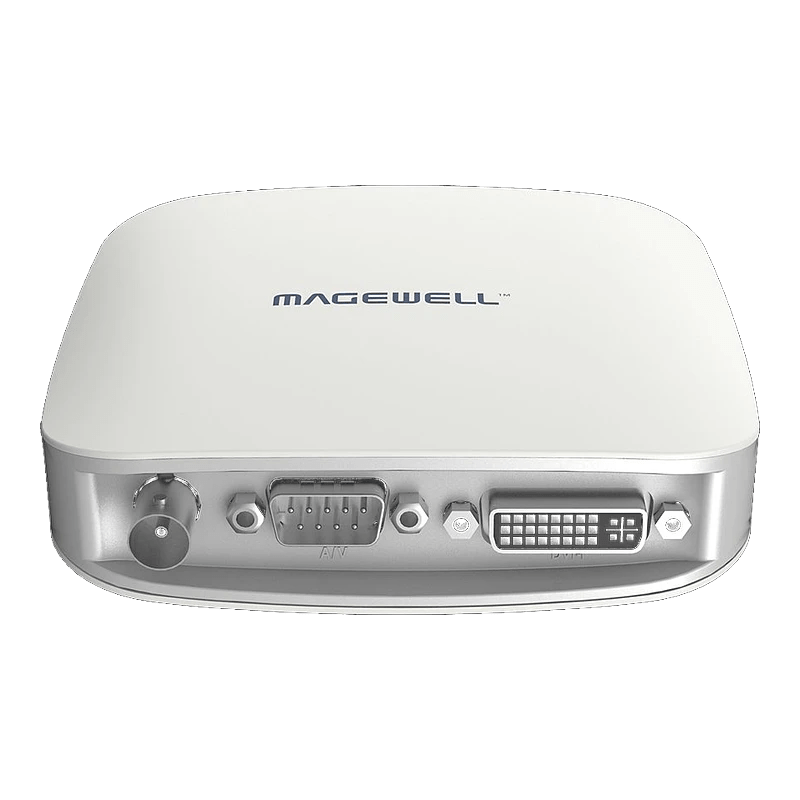
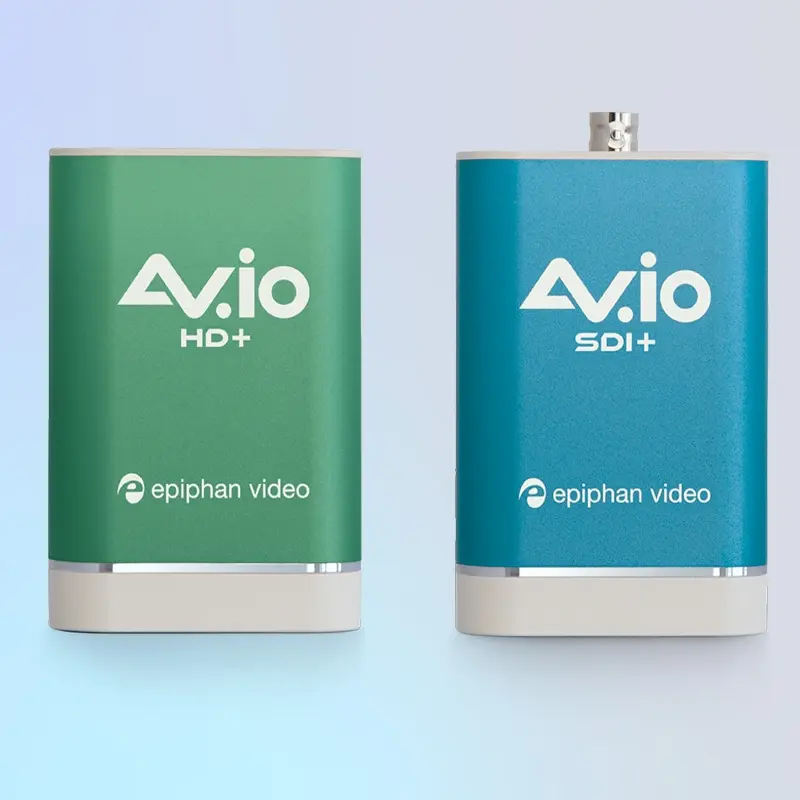
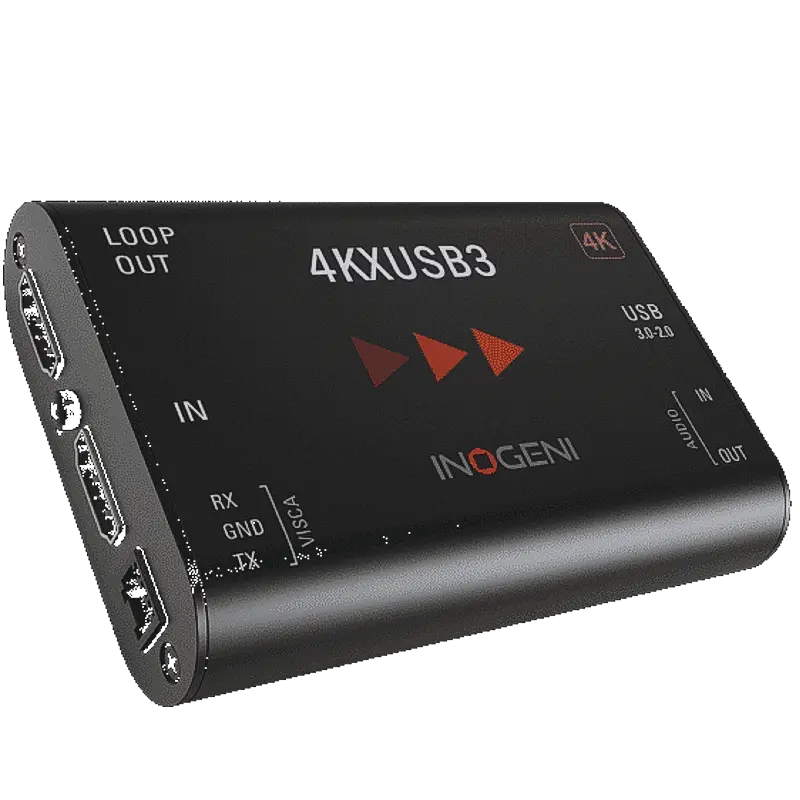
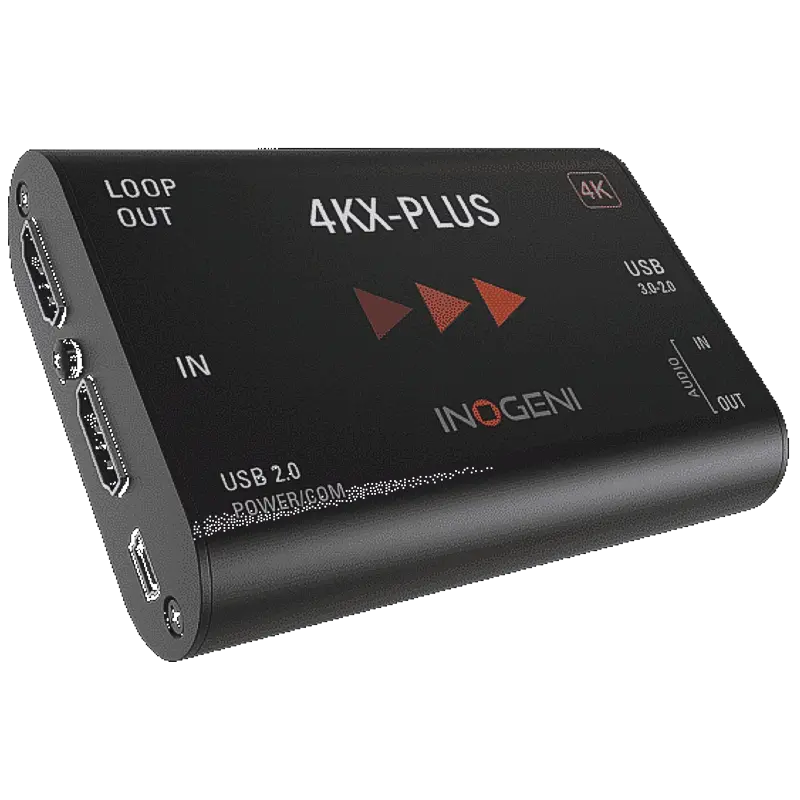
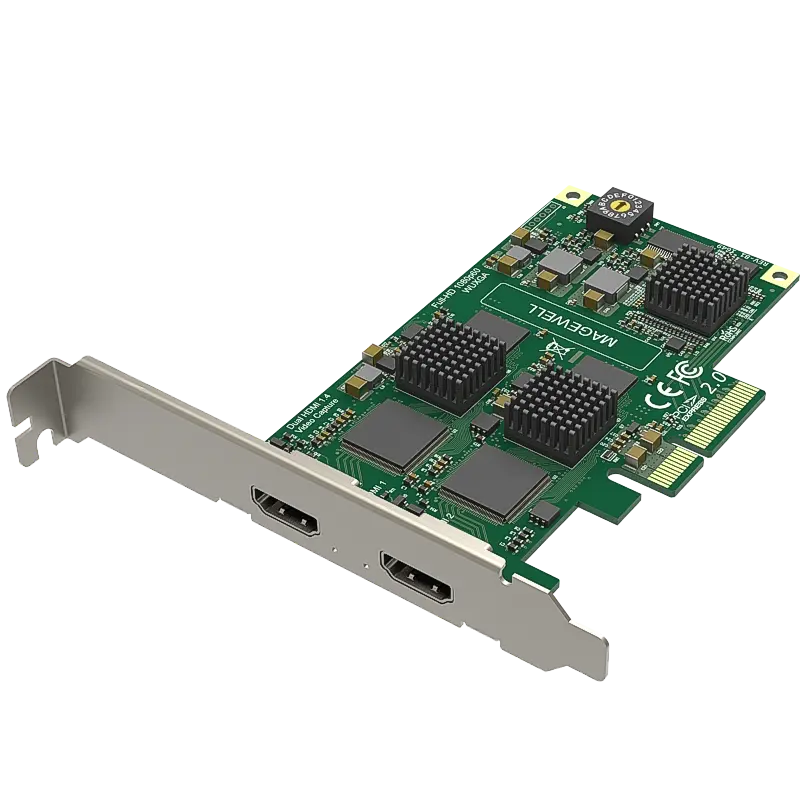
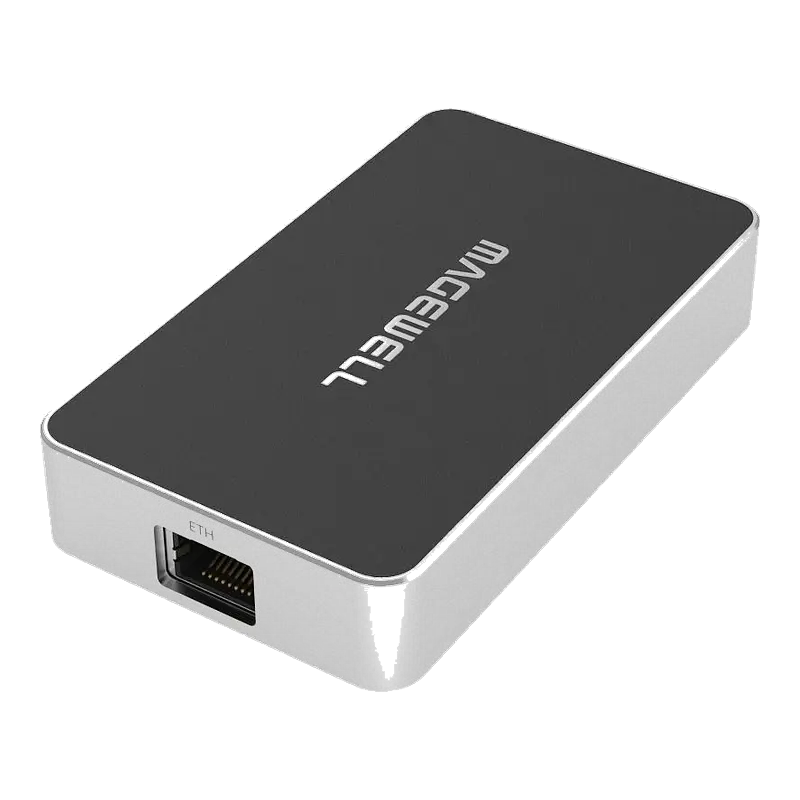
The Magewell USB Capture HDMI Gen 2 (£231) is the professional standard — UVC driverless, reliable across Windows updates, and immediately visible in Panopto Remote Recorder. For the projector loop-through workflow, the USB Capture HDMI Plus (£287) is better — it captures slides and passes the signal to the projector from one device. Epiphan AV.io HD Plus is also widely deployed in UK universities. For embedded lecture capture appliances (NUC PCs in AV racks), the Magewell Eco Capture Dual HDMI M.2 (£253) captures both camera and slides in one M.2 card.
Can I capture VGA slides as well as HDMI in lecture capture?
Yes. The Kiloview M2 specifically handles HDMI and VGA simultaneously in one device. For USB-based setups, Epiphan AV.io HD Plus accepts VGA alongside HDMI. For venues where VGA is used, the cleanest long-term solution is to install an active VGA-to-HDMI converter at each presenter connection point — then all capture hardware is HDMI-based and simpler to manage at scale.
Why does Panopto Remote Recorder not see my capture card?
The card must be UVC (USB Video Class) compliant. Proprietary-driver-only cards are not visible to Panopto. Also check: connected directly to USB 3.0 (not a hub), Device Manager shows no warnings, the Panopto Remote Recorder service has been restarted, and Windows Camera privacy settings allow Panopto access. Magewell USB Capture cards are confirmed UVC and the most reliable choice for Panopto installations.
What resolution should I capture lectures at?
1920×1080 at 25fps for UK deployments. Always use 25fps — not 30fps — as UK mains lighting operates at 50Hz and 30fps causes visible flicker. Panopto transcodes on upload regardless of capture resolution, so 4K capture adds storage overhead without improving the final viewer experience. For slides, capture at the source resolution (usually 1920×1080 or 1920×1200).
How do I capture presenter video and slides simultaneously in Panopto?
Use two capture sources in Panopto Remote Recorder: one USB capture device for the presenter camera and one for the slides HDMI output. Both appear as separate video sources in Panopto and are recorded as separate streams in the multi-stream layout — viewers see presenter and slides side by side or switchable. Alternatively, use Panopto's built-in screen capture to record the presenter's laptop screen directly without a second capture card.
How do I deploy the same setup across 50+ lecture theatres?
Standardise on one hardware specification — a small form factor PC with Magewell USB Capture HDMI cards or Eco Capture Dual HDMI M.2 for embedded installation. Provision via a standard Windows image (SCCM, Intune or WDS). The Panopto Remote Recorder installs from the Panopto admin site and auto-registers to your Panopto organisation. Use Magewell USB Capture cards for their driver consistency across Windows update cycles in unattended deployments.
What is the best setup for hybrid lectures with remote students?
Run Panopto Remote Recorder and Zoom simultaneously on the lecture capture PC. The USB capture device feeds both — Panopto records for asynchronous playback while Zoom delivers the live session to remote students. The Magewell USB Capture HDMI Plus provides loop-through so the presenter slides go to the room projector and are also captured. For audio, use the room's installed microphone via the capture card's HDMI audio or a separate USB audio interface.