
Video Conferencing
Professional cameras in Zoom, Microsoft Teams, Google Meet, Cisco Webex and every other conferencing platform — USB capture devices, BYOM room integration, PTZ camera control, HDCP avoidance and multi-room deployment across every organisation type.
Video Conferencing Signal Flow
Who This Applies To
Corporate & Enterprise
Executive meetings, board calls, global town halls and investor relations events requiring professional-quality video.
Legal & Law Firms
Client consultations, court appearances via video link and inter-office collaboration with professional image quality.
Financial Services
Client-facing financial advisory, regulatory remote hearings and analyst calls where credibility depends on appearance.
Healthcare
Telemedicine consultations, multidisciplinary team meetings, clinical education and remote diagnosis with clear imaging.
Education (Hybrid)
Hybrid teaching with in-person and remote students simultaneously in Zoom or Teams from a lecture room.
Government & Defence
Secure video conferencing on certified platforms, committee hearings and inter-agency collaboration.
Content Creators
Professional podcast recording via Zoom, high-quality remote interviews and sponsored brand calls where appearance matters.
Construction & Engineering
Site visits, technical briefings and project reviews where camera clarity enables better decision-making remotely.
Video Conferencing Setup Types
Camera + Capture Card as Webcam
Connect a DSLR, mirrorless or broadcast camera HDMI output to a USB capture device. The card appears as a webcam in all conferencing platforms — no setup, no software.
- ✅ Works in Zoom, Teams, Meet, Webex immediately
- ✅ UVC — no drivers, no software installation
- ✅ Any camera with HDMI clean output
- ⚠️ Camera must have clean HDMI mode enabled
BYOM Room Integration
Meeting room with a fixed professional camera. Visitor connects one USB cable from their laptop and immediately uses the room camera as their Zoom or Teams webcam.
- ✅ No configuration by visitor
- ✅ Works with visitor's own Teams/Zoom account
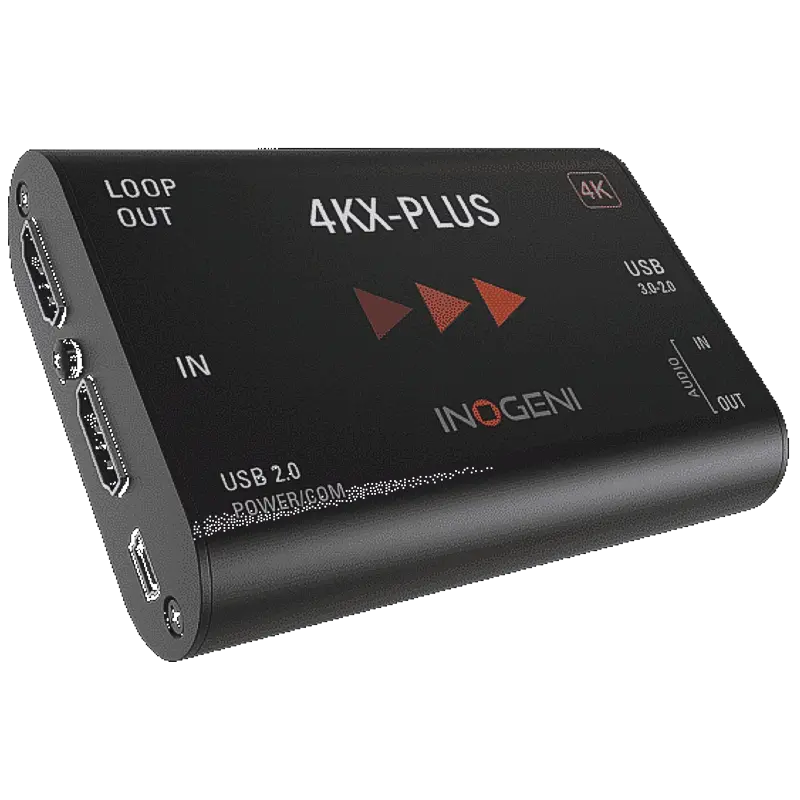
- ✅ Inogeni 4KX-PLUS BYOM certified
- ⚠️ Camera must be permanently installed
Teams Rooms / Zoom Rooms
Dedicated conferencing PC running Teams Rooms or Zoom Rooms software — always-on, no personal login required. PTZ camera controlled from the room controller.
- ✅ One-touch join any Teams/Zoom meeting
- ✅ No IT support needed per meeting
- ✅ PTZ control from touchscreen
- ⚠️ Microsoft/Zoom licensing required
NDI PTZ → USB Webcam
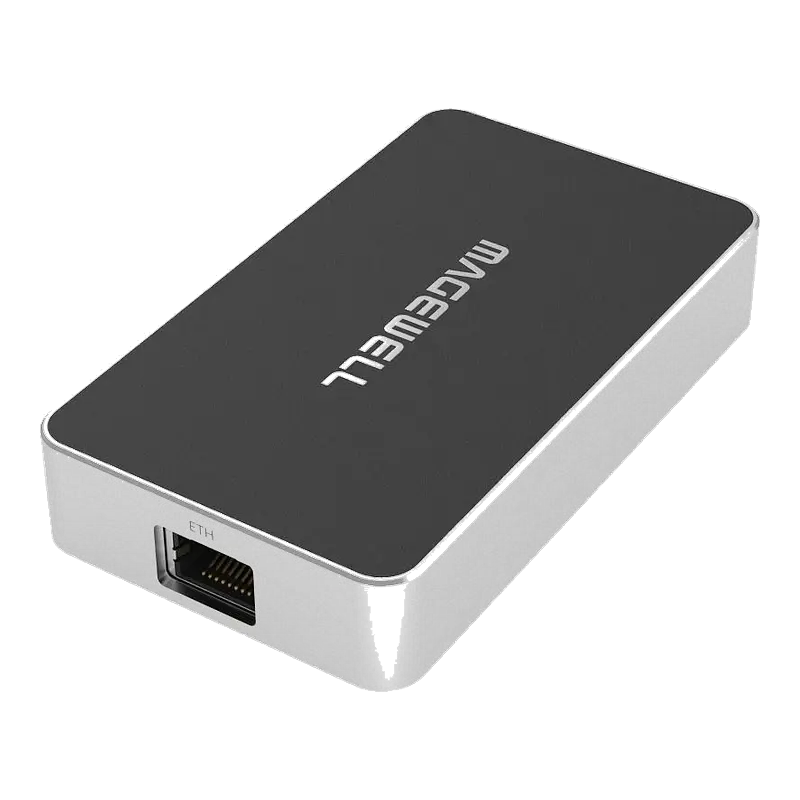
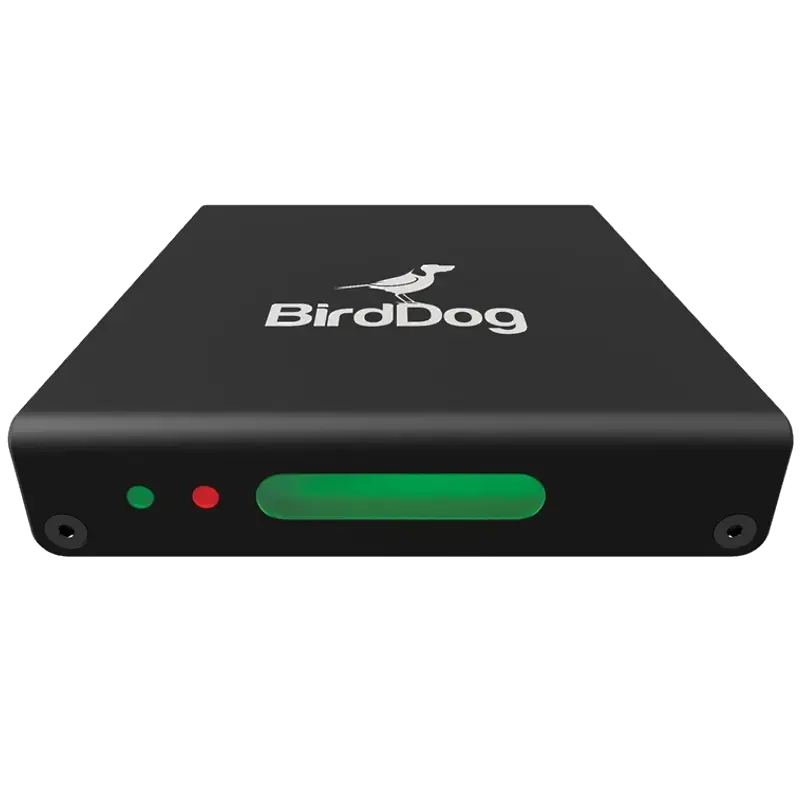
NDI PTZ cameras around the building feed the network. The Magewell Pro Convert IP to USB receives the NDI stream and presents it as a USB webcam to any PC anywhere on the network.
- ✅ Any NDI camera used in any room
- ✅ No HDMI cable runs between rooms
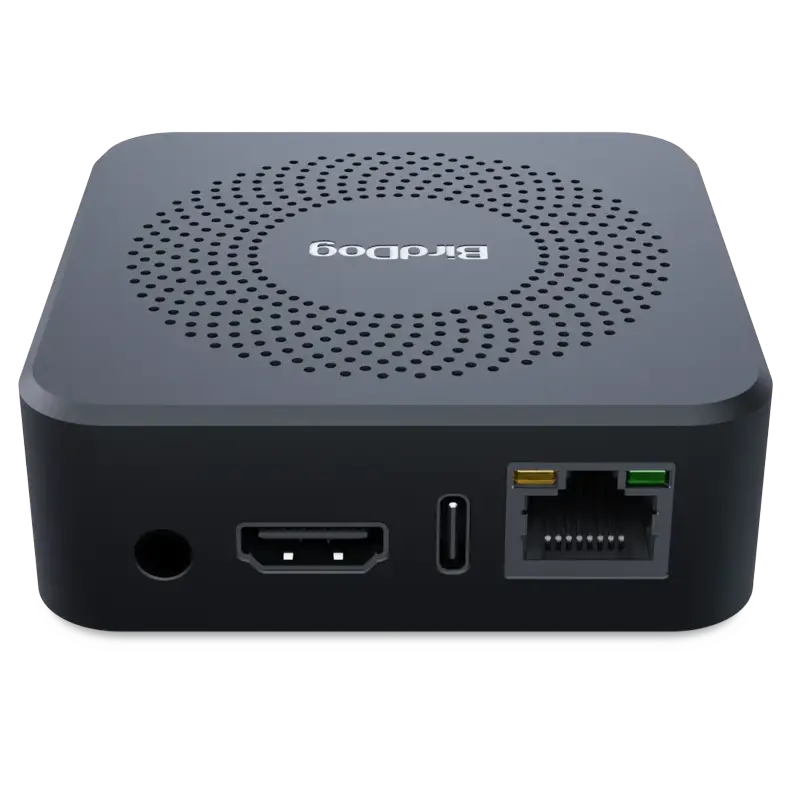
- ✅ PTZ control via BirdDog web interface
- ⚠️ Requires Gigabit network infrastructure
OBS Virtual Camera
OBS Studio with multiple camera sources, overlays and chroma key composited into a "virtual camera" that appears as a webcam in Teams and Zoom — production-grade backgrounds, multi-cam switching.
- ✅ Full production control in any meeting
- ✅ Custom backgrounds, lower thirds
- ✅ Switch cameras mid-meeting
- ⚠️ PC must run OBS during call
USB Fusion Multi-Input
The Magewell USB Fusion accepts HDMI, SDI, NDI and USB sources simultaneously and composites them into a single USB webcam output — presenter, slides and graphics all in one Teams/Zoom window.
- ✅ Multiple sources in one webcam output
- ✅ NDI, HDMI, SDI and USB combined
- ✅ No OBS required on the PC
- ⚠️ Higher investment
Recommended Products for Video Conferencing




Platform Compatibility & Resolution Limits
| Platform | Max inbound video | Max outgoing video | Webcam (UVC) | Screen share | Notes |
|---|---|---|---|---|---|
| Microsoft Teams | 1080p (Premium) | 720p standard / 1080p Premium | ✅ | ✅ 1080p | Standard meetings capped at 720p out; Teams Premium or policy unlocks 1080p |
| Zoom | 1080p HD (Pro+) | 720p standard / 1080p HD add-on | ✅ | ✅ 1080p | 1080p requires Zoom HD video setting enabled in account settings |
| Google Meet | 1080p | 720p standard / 1080p premium | ✅ | ✅ 1080p | Google Workspace; 1080p available in premium tiers |
| Cisco Webex | 1080p (Full HD) | 1080p | ✅ | ✅ 4K | Webex supports 1080p outgoing natively; BYOM certified with Inogeni 4KX-PLUS |
| Zoom Webinar | 1080p | 1080p panellists | ✅ | ✅ 1080p | Webinar host/panellists get 1080p; attendees receive 720p |
| Teams Live Events | 1080p | 1080p | ✅ | ✅ | Encoder-based events support 1080p input via RTMP/SRT |
⚠️ Teams 720p cap: Microsoft Teams limits outgoing video to 720p in standard meetings regardless of camera quality. The capture card delivers 1080p to Teams but Teams re-encodes and sends at 720p. Upgrading to Teams Premium unlocks 1080p. This is frequently misidentified as a capture card issue — it is a Teams platform restriction. To guarantee 1080p delivery, use Teams Live Events with an RTMP encoder (Magewell Ultra Encode) rather than a standard Teams meeting.
USB bandwidth guide — how many capture cards per computer
| Resolution | USB bandwidth per card | Max cards on USB 3.0 (5 Gbps controller) | Recommendation |
|---|---|---|---|
| 720p30 | ~200 Mbps | 4–5 cards | Plenty of headroom |
| 1080p30 | ~400 Mbps | 2–3 cards | Standard conferencing — 2 cards fine on most PCs |
| 1080p60 | ~750 Mbps | 1–2 cards | One card comfortably; two requires testing |
| 4K30 | ~1,500 Mbps | 1 card only | 4K requires one dedicated USB 3.0 controller |
| 4K60 | ~3,000 Mbps | 1 card (USB 3.1 Gen2) | Requires USB 3.1 Gen 2 (10 Gbps) port |
Compatible Conferencing & Production Software
Troubleshooting Common Video Conferencing Problems
❌ Capture card not appearing in Zoom or Teams camera list
Step 1 — check Windows Camera privacy. Settings → Privacy & Security → Camera → allow the conferencing app to access the camera. Step 2 — close other apps. Only one application can use a UVC device at a time — if OBS, Teams and Zoom are all open, only one has control. Close all others and reopen the one you need. Step 3 — reconnect the card. Unplug and replug to a USB 3.0 port directly on the PC (not a hub). Step 4 — check Device Manager — the capture card must appear under Cameras or Imaging Devices with no yellow warning icons. Step 5 — use a UVC card. Non-UVC cards with proprietary drivers are not reliably visible in all conferencing apps. Magewell USB Capture and Inogeni devices are confirmed UVC.
📷 Camera image is black in Teams/Zoom but appears fine in other apps
Most common cause: HDCP content protection on the HDMI source. Check the source — if it is a streaming stick (Chromecast, Fire TV), Sky box, Blu-ray player or any content receiver, it outputs HDCP which the capture card blocks by design. Cameras, computers and production AV systems (Crestron, AMX) do not output HDCP. Alternatively, the issue may be that Windows permissions block this specific app from camera access (check Privacy settings per-app). Also try: open Device Manager → Cameras → right-click the capture card → Enable Device.
📺 Teams only showing 720p even though camera is 1080p
This is a Microsoft Teams platform restriction — not a capture card issue. Teams caps most standard meetings at 720p outgoing video regardless of the camera quality. The capture card is delivering 1080p to Teams, but Teams re-encodes to 720p for delivery. Solutions: (1) upgrade to Microsoft Teams Premium which unlocks 1080p in meetings; (2) use Teams Live Events with an RTMP/SRT encoder (Magewell Ultra Encode) instead of a standard meeting — encoder-based events support full 1080p. For Zoom, enable HD Video in Zoom account settings → My Account → Settings → Video → HD.
⏱️ Visible delay between camera movement and what appears on screen
USB capture devices introduce 100–300ms of processing latency. This is unavoidable and generally acceptable for video calls (the call adds network latency on top). If you are using a loop-through output to also show the camera on a local display, the loop-through will appear instant while the captured image in Teams/Zoom will lag — this is normal. If the latency is unacceptably long (more than 500ms), switch to a higher-quality UVC card (Magewell USB Capture has among the lowest USB capture latency). For near-zero latency monitoring, use the camera's HDMI loop-through output to a local display rather than monitoring via the conferencing app preview.
🔊 Audio from camera not working in Teams or Zoom
HDMI carries embedded audio alongside video. If using HDMI to USB capture, the capture card presents HDMI audio as a separate USB audio device. In Zoom: Settings → Audio → Microphone → select the capture card's audio device (may appear as "USB Audio" or the card name). In Teams: Settings → Devices → Microphone → select capture card audio. If no audio device appears: (1) check Device Manager → Sound → the capture card should appear as an audio device; (2) right-click the speaker icon in the Windows taskbar → Sound Settings → Input → set to capture card audio; (3) some cameras require the HDMI audio to be enabled in the camera menu — check the camera's HDMI audio output setting.
🖼️ Camera image is flipped, mirrored or upside down in Teams/Zoom
Some capture cards mirror the image horizontally by default. In Zoom: Settings → Video → check/uncheck "Mirror my video" (this is a display preference only — does not affect what others see). For actual image rotation (upside down), the camera is physically mounted inverted — rotate the camera or use the rotation setting in the capture card software. In Teams: there is no mirror setting in the UI; use the Magewell USB Capture Utility or OBS Virtual Camera (with transform) to correct rotation before it reaches Teams. On Mac, the camera image can sometimes appear mirrored in Teams — enable "Mirror preview" in Teams video settings.
🔌 USB capture device works on laptop but drops out randomly on a hub
USB capture devices require a direct connection to a USB 3.0 port on the computer's motherboard — USB hubs, docking stations and USB-C adapters share bandwidth and may not provide the sustained throughput required. A 1080p60 capture card needs approximately 750 Mbps of consistent USB bandwidth. USB hubs can introduce latency and bandwidth sharing that causes intermittent frame drops or disconnections. Connect the capture card directly to a USB-A 3.0 port on the laptop chassis. On MacBooks with USB-C only, use a powered hub and connect the capture card to its own USB 3.0 port without other bandwidth-intensive devices on the same hub.
Deploying across multiple conference rooms?
Our technical team can advise on standardised hardware specifications for any room count, from 5-room huddle space rollouts to 100-room corporate campus deployments — including Teams Rooms and Zoom Rooms integration.
Contact Technical SupportFrequently Asked Questions
Can I use a professional camera in Zoom or Microsoft Teams?
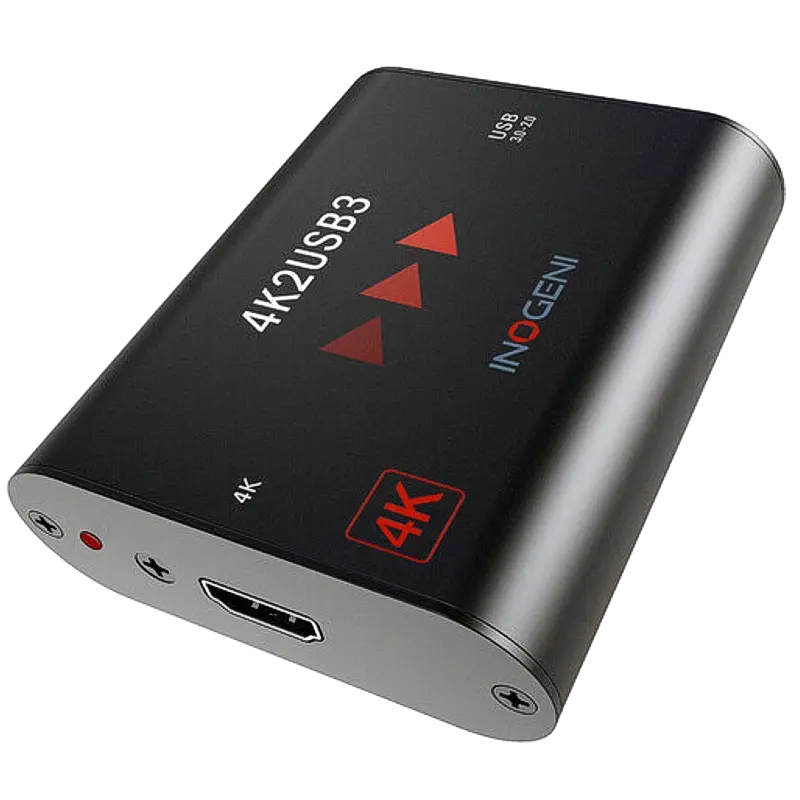
Yes. Connect the camera's HDMI output to a USB capture device — Magewell USB Capture HDMI Gen 2 (£231) or Inogeni 4K2USB3 are the most reliable. In Zoom or Teams, select the capture card from the camera dropdown. It appears as a standard webcam. Enable clean HDMI output on the camera (removes on-screen menus). Works with any UVC-compliant capture card on Windows, Mac and Linux with no driver installation.
Why is my capture card not appearing in Teams or Zoom?
Check Windows Camera Privacy settings first (Settings → Privacy → Camera → allow the app). Close all other apps that might have the camera open. Reconnect the card directly to a USB 3.0 port (not a hub). Check Device Manager for driver warnings. Use a UVC-compliant card — Magewell and Inogeni devices are confirmed UVC and visible in all conferencing platforms without driver installation.
Why does Teams only show 720p from my 1080p camera?
Teams caps outgoing video at 720p in standard meetings regardless of camera quality — this is a Teams platform restriction, not a capture card issue. Teams Premium unlocks 1080p. For guaranteed 1080p delivery, use Teams Live Events with an RTMP encoder (Magewell Ultra Encode) rather than a standard meeting. For Zoom 1080p, enable HD Video in Zoom account settings.
What is BYOM and which devices support it?
BYOM (Bring Your Own Meeting) allows a visitor's laptop to use a room's installed camera, microphone and display via a single USB-C cable — without pre-configured room credentials. The Inogeni 4KX-PLUS BYOM is certified for Cisco Webex Rooms, Zoom Rooms and Microsoft Teams Rooms BYOD scenarios. The visitor plugs in one USB cable and their Teams or Zoom call uses the professional room camera immediately.
Can I use a PTZ camera in Zoom and Teams?
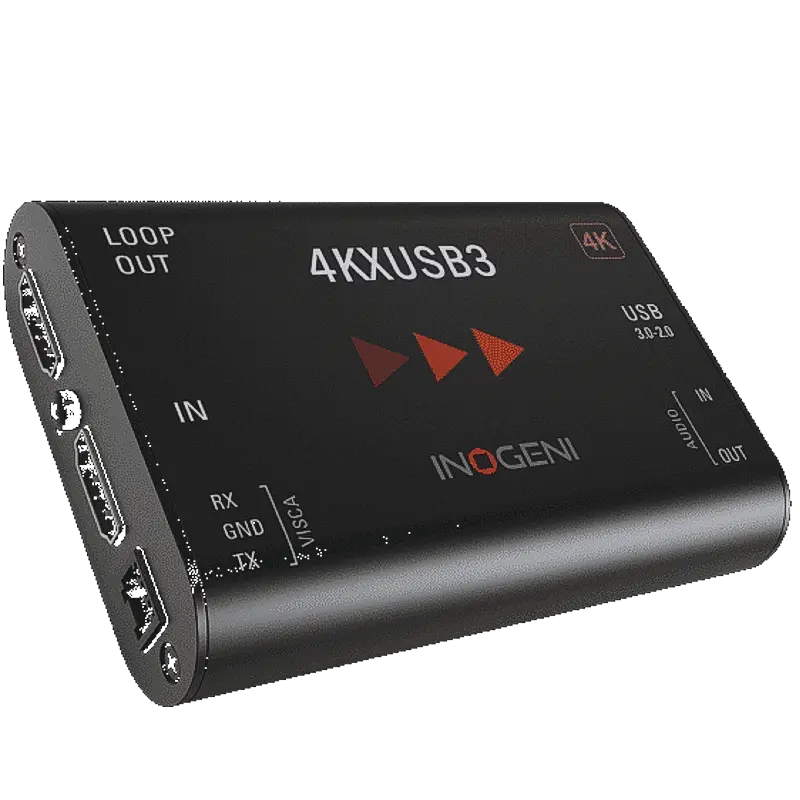
Yes. Connect the PTZ camera's HDMI output to an Inogeni 4KXUSB3 (which has a VISCA PTZ control port for pan/tilt/zoom control) or any standard USB capture device. For NDI PTZ cameras (BirdDog), use the Magewell Pro Convert IP to USB to receive NDI and output as a USB webcam — PTZ control then happens via the BirdDog web interface or PTZ controller.
Does HDCP prevent me from capturing from a room AV system?
Conference room AV systems (Crestron, AMX, Extron), cameras and presentation switchers do not typically output HDCP — so they can be captured. HDCP is found on Blu-ray players, streaming devices (Apple TV, Fire TV, Roku) and TV tuners. If a room AV matrix is outputting HDCP on its HDMI outputs (uncommon), check its settings for HDCP enable/disable, or capture directly from the camera rather than the AV matrix output.
How many USB capture devices can I connect to one laptop?
One to two cards at 1080p is reliable on most laptops. Beyond two, USB bandwidth becomes a constraint. All USB ports on a laptop typically share one USB controller (approximately 5 Gbps for USB 3.0). Each 1080p30 capture card uses approximately 400 Mbps — leaving room for one or two cards before bandwidth contention. For a camera-plus-slides two-card setup, two USB capture devices on separate physical USB-A ports work reliably on most modern laptops.